

Object Storage
Object Storage Access
Once a bucket is created, connect to it with any S3-compatible SDK, or manage files directly from the Dashboard.
Steps
- Open Object Storage and click Manage on your bucket.
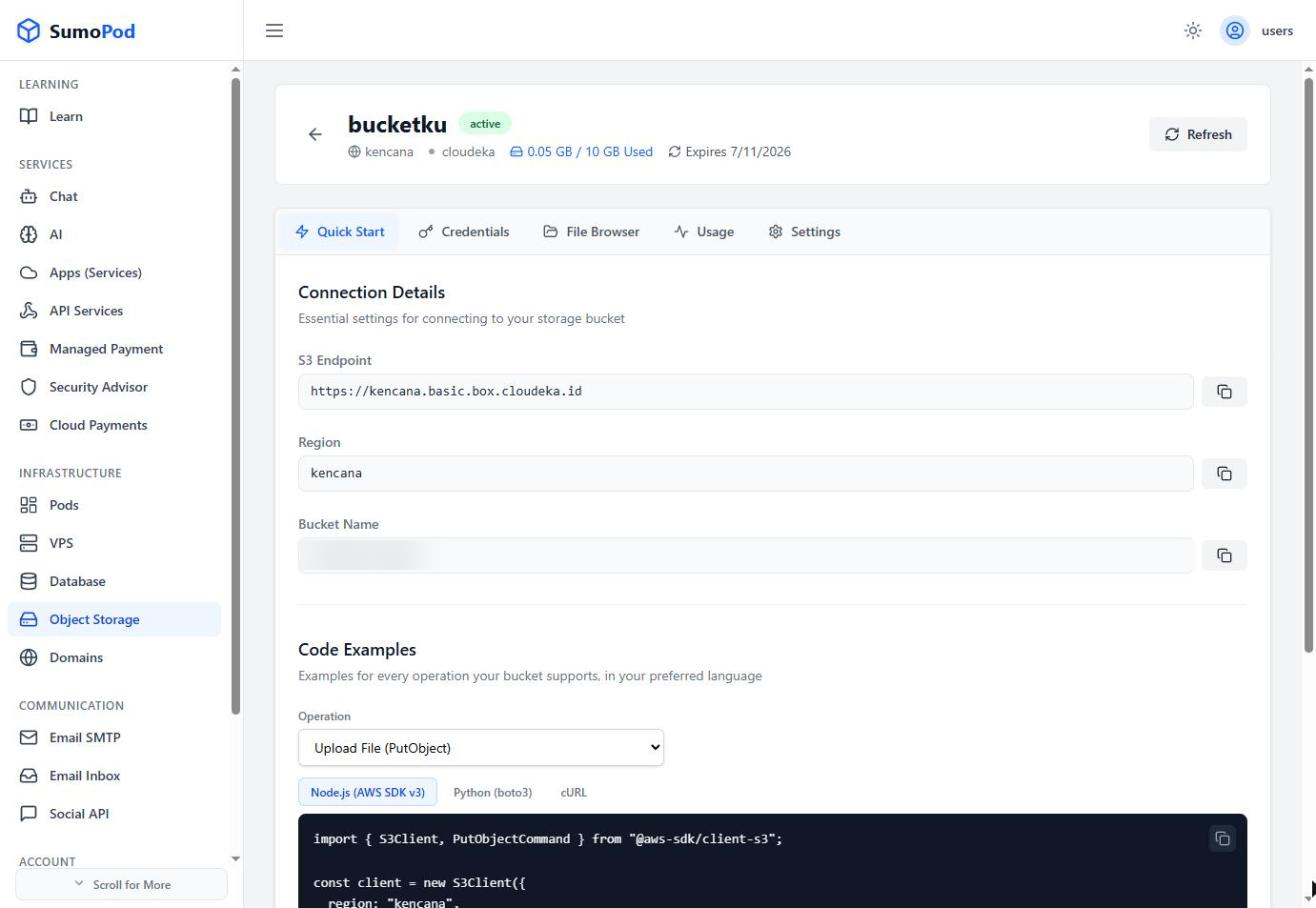
- On the Quick Start tab, note the Connection Details: S3 Endpoint, Region, and the actual Bucket Name.
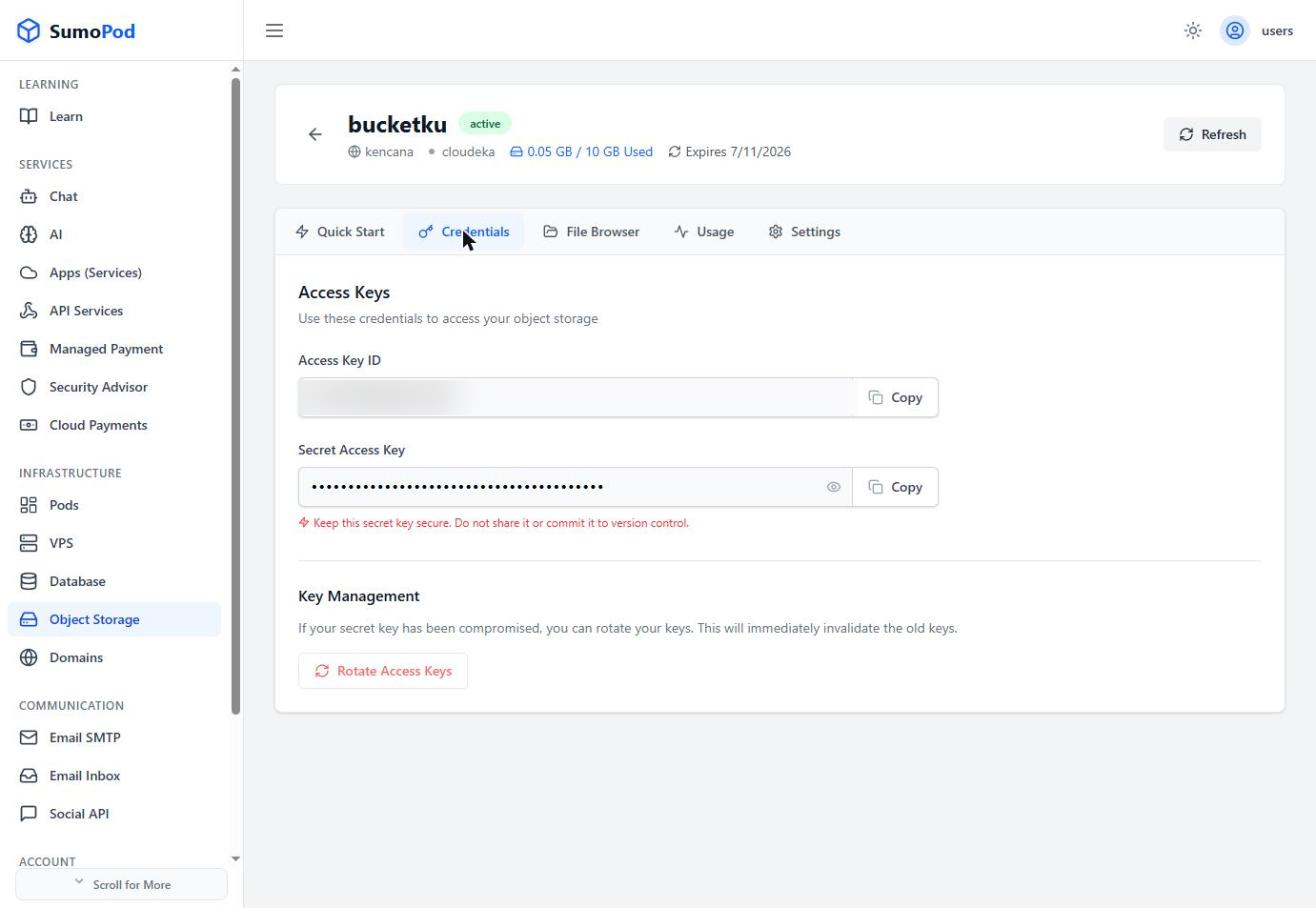
- On the Credentials tab, copy your Access Key ID and Secret Access Key (use Rotate Access Keys if they're ever compromised).
- Use an S3-compatible SDK to upload, download, list, delete, copy/rename, or create folders, example in Node.js:
Code
- Alternatively, use the File Browser tab to upload, download, or delete files directly from the Dashboard without writing any code.
Notes
- Python (boto3) and cURL examples are also available on the Quick Start tab, alongside support for multipart upload (for large files).
- Check the Usage tab to monitor how much of your storage quota has been used.
- Direct link: Object Storage
Last modified on