

Getting Started
This guide helps you get started with Sumopod, from creating an account to using the service for the first time.
About Sumopod
Sumopod provides a variety of cloud services for your server, AI, automation, database, email SMTP, domain, API services, object storage, and other needs.
Through the Sumopod Dashboard, you can purchase and manage services, make payments, and view information about the services you are currently using.
Logging In or Creating an Account
You can log in to or sign up for Sumopod using your Google account or an active email address.
What you need
- A Google account or an active email address
How to log in
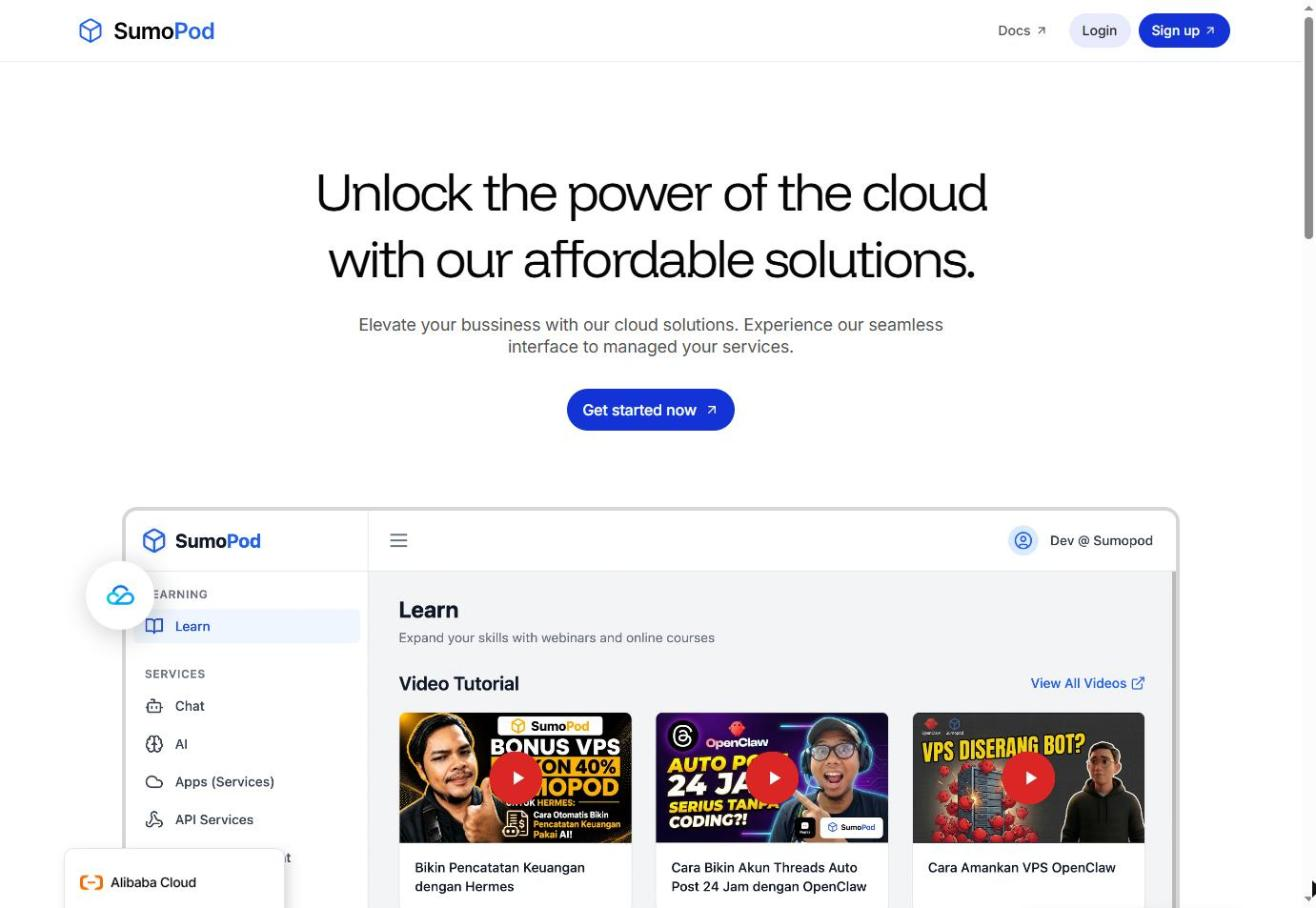
- Open Sumopod and click Dashboard or Get started now.
- The Welcome back login page opens.
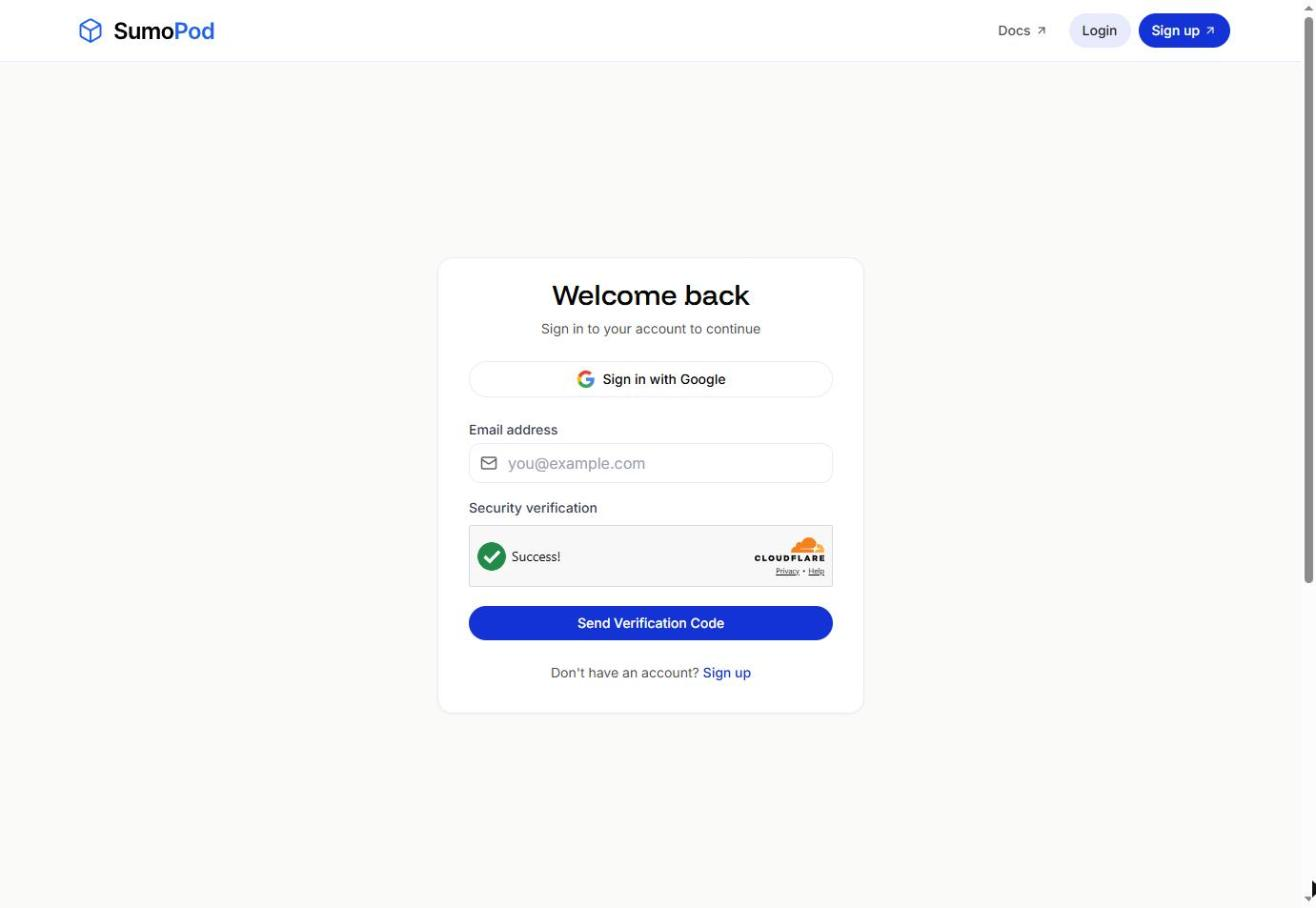
- Log in using one of these options:
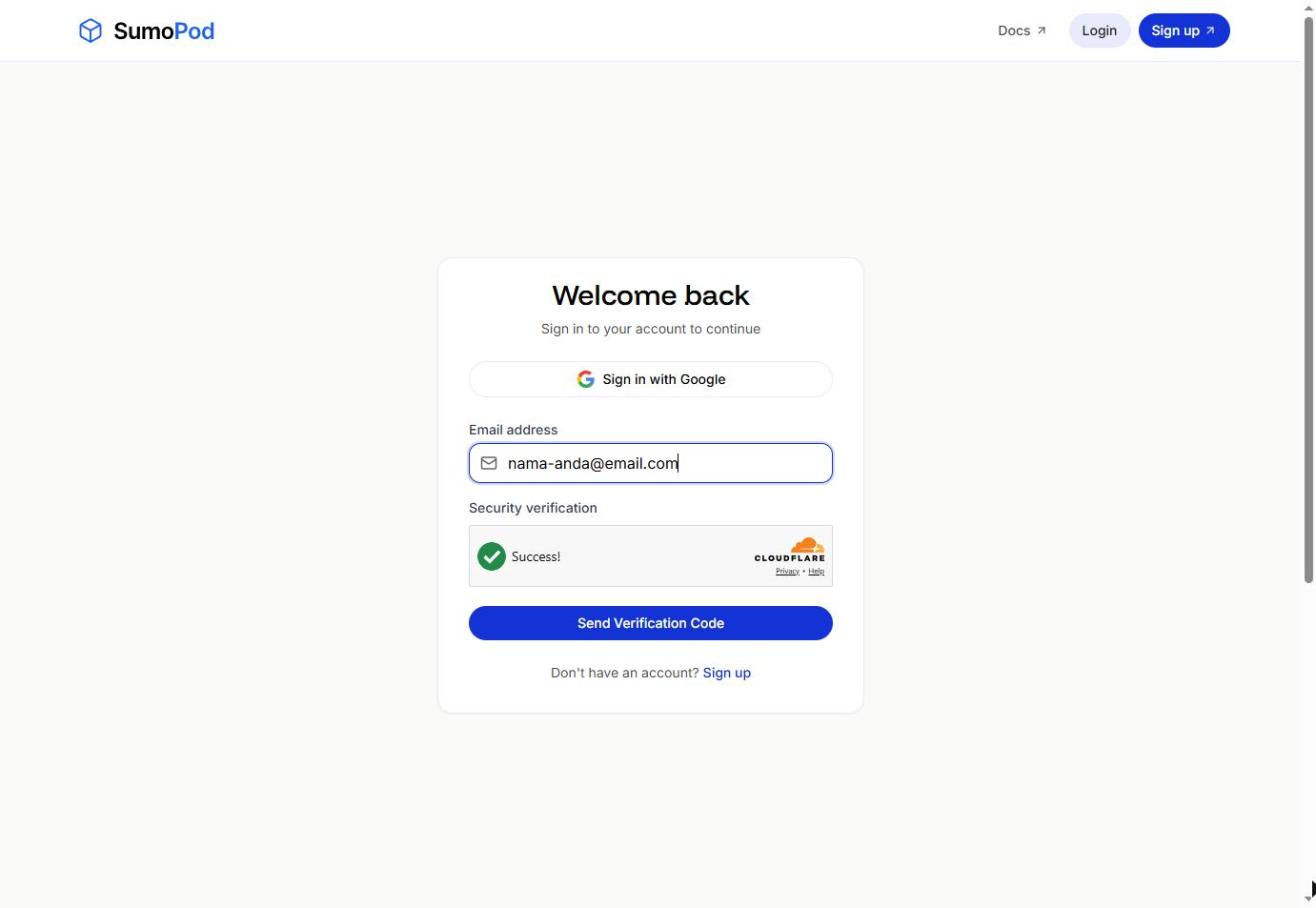
- Email: enter your email address, complete the Security verification, then click Send Verification Code and enter the code sent to your email. No password is needed.
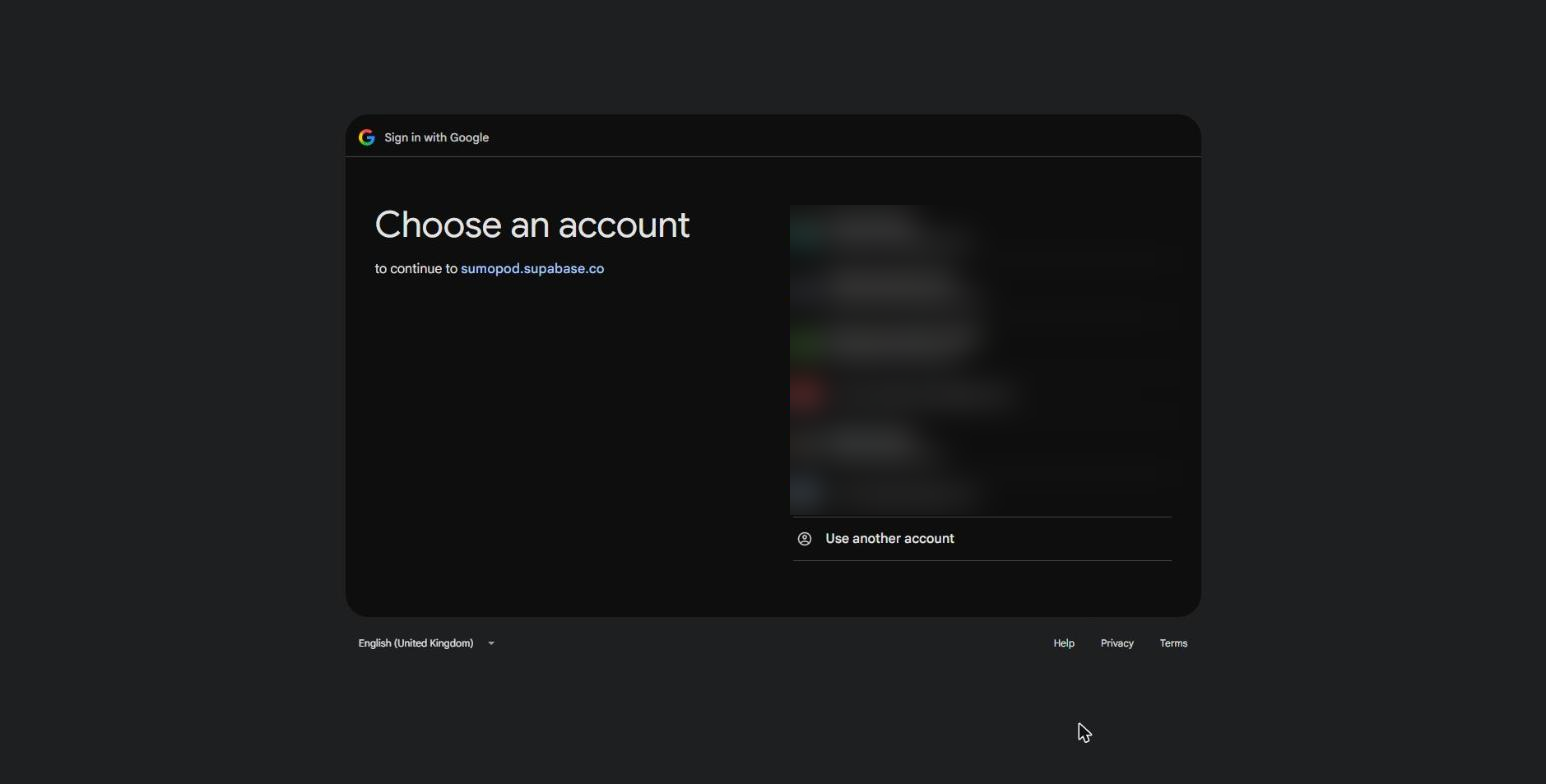
- Google: click Sign in with Google and choose your Google account.
- Email: enter your email address, complete the Security verification, then click Send Verification Code and enter the code sent to your email. No password is needed.
- Once successful, you will be directed to the Sumopod Dashboard.
How to create an account
If you don't have an account yet:
- Click Sign up at the top of the page, or the Sign up link below the login form.
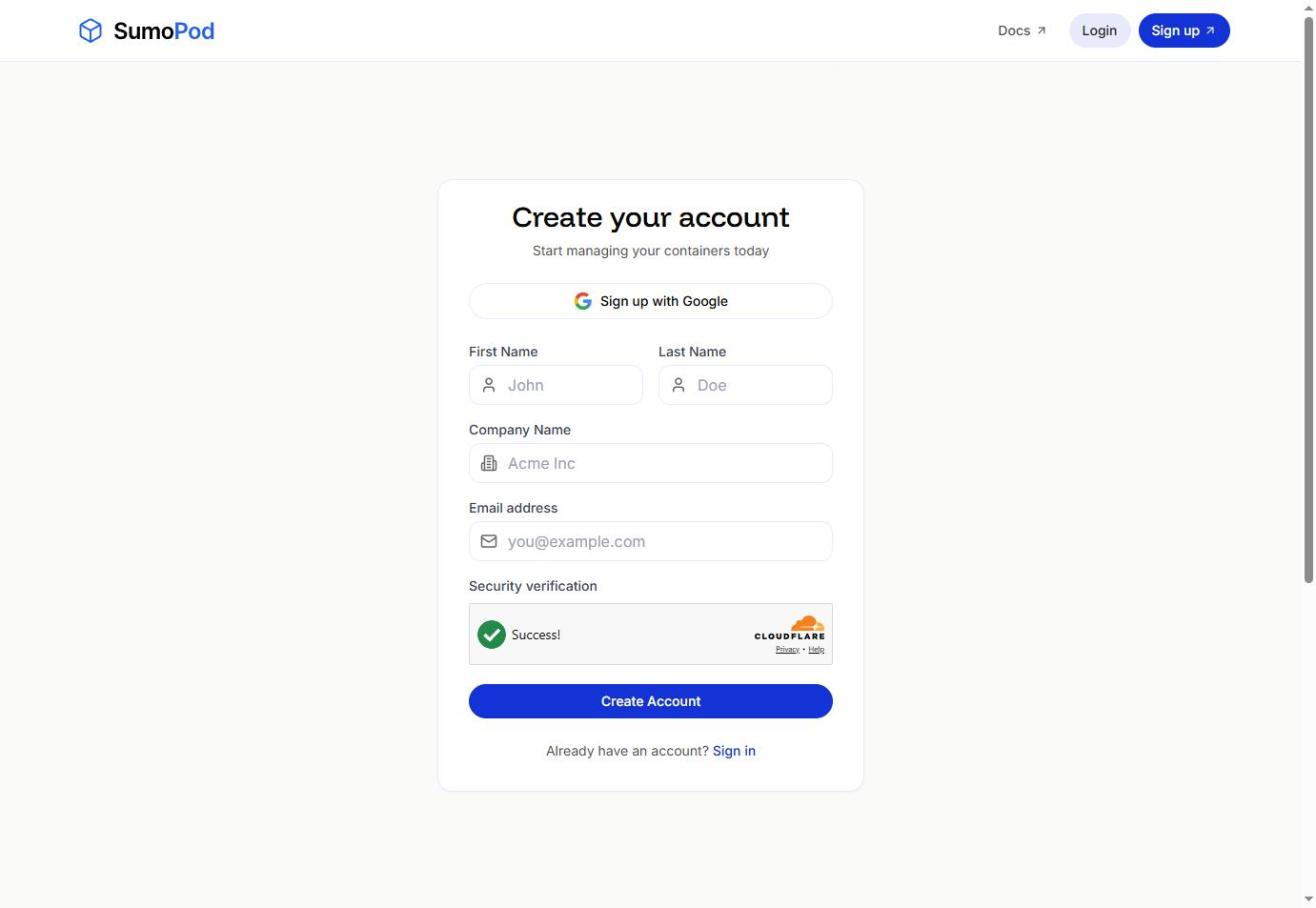
- Sign up using one of these options:
- Email: fill in your First Name, Last Name, Company Name, and Email address, complete the Security verification, then click Create Account.
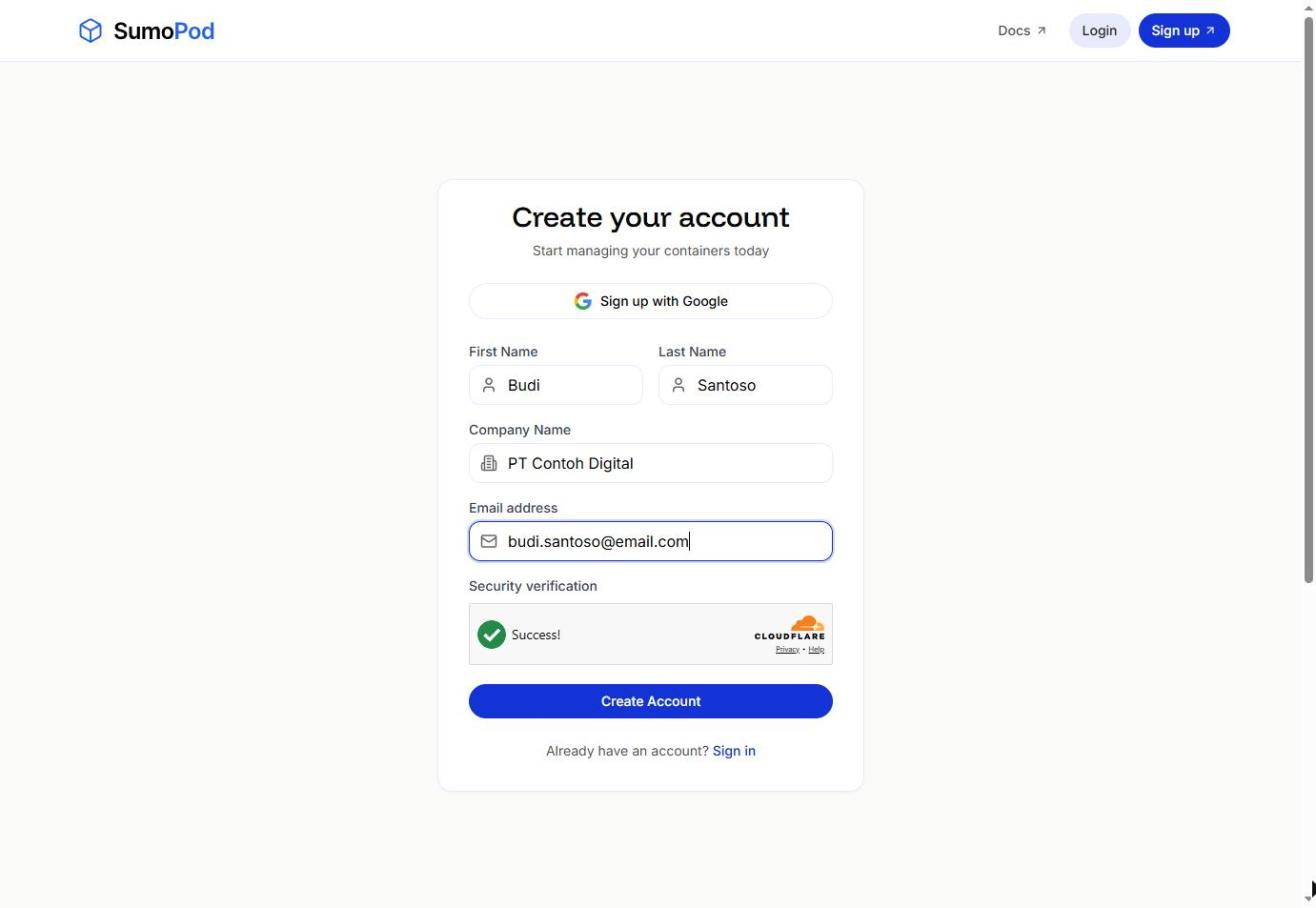
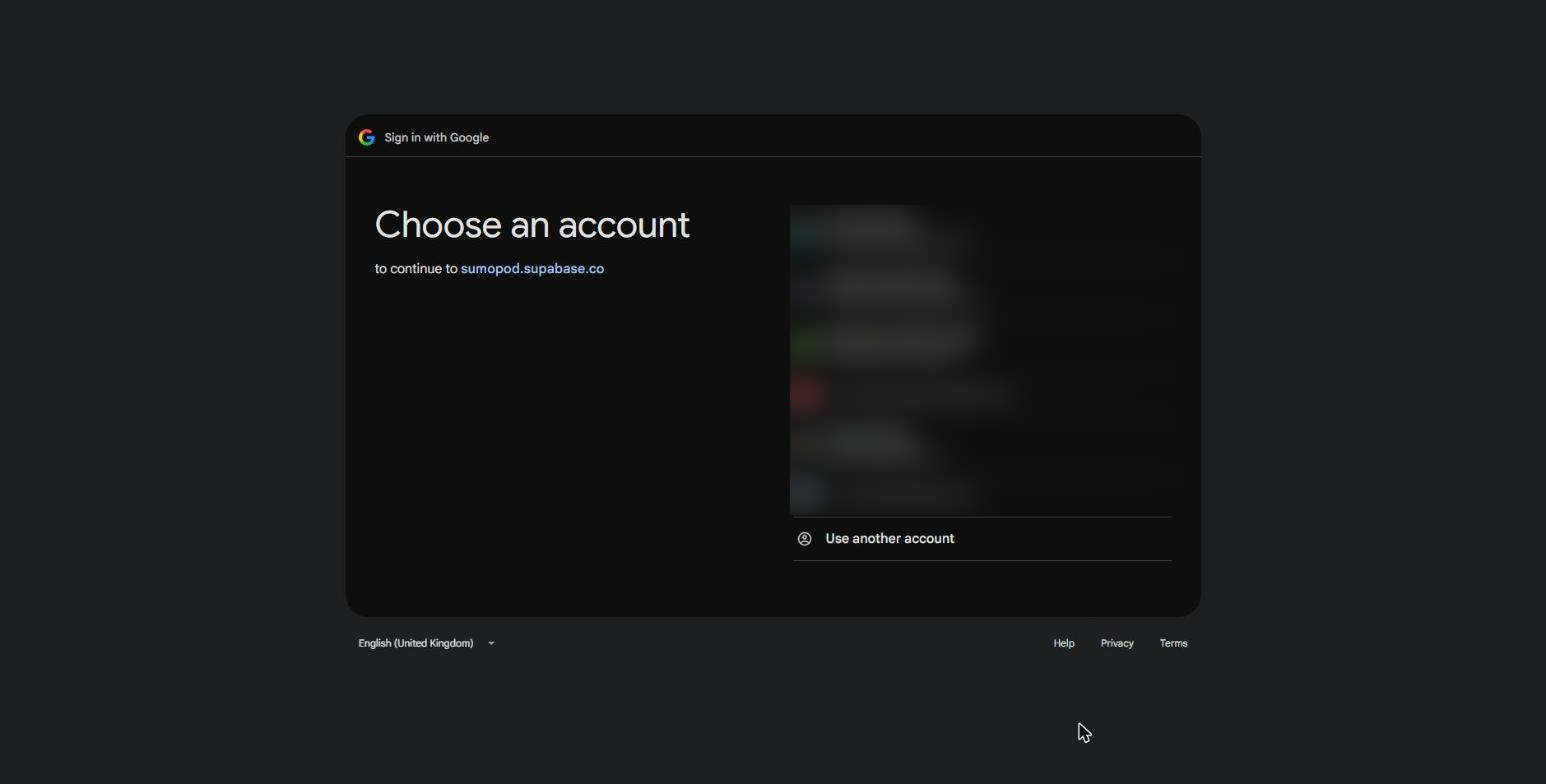
- Google: click Sign up with Google and choose your Google account.
- Email: fill in your First Name, Last Name, Company Name, and Email address, complete the Security verification, then click Create Account.
- Once successful, you will be directed to the Sumopod Dashboard.
If you experience issues during registration, see Account Troubleshooting.
About the Dashboard
After logging in, you will be directed to the Sumopod Dashboard.
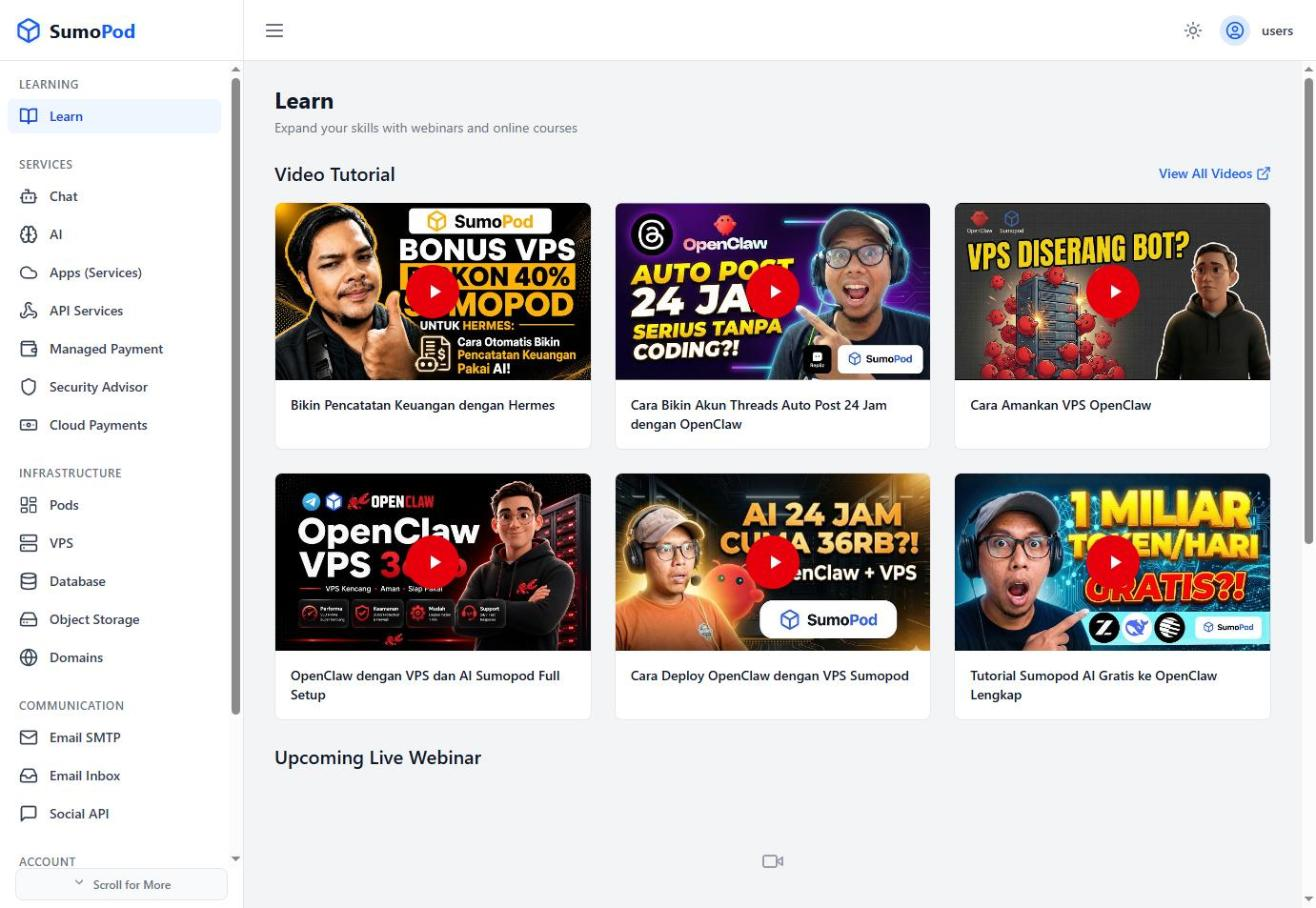
The Dashboard is used to manage your Sumopod account and services.
From the Dashboard, you can:
- View the services you are currently using.
- Purchase new services.
- Manage your services.
- Check your balance and transactions.
- Access features available on your account.
Use the navigation menu to switch between services.
Adding Balance
How to add balance
- Log in to the Dashboard.
- Open the Billing menu.
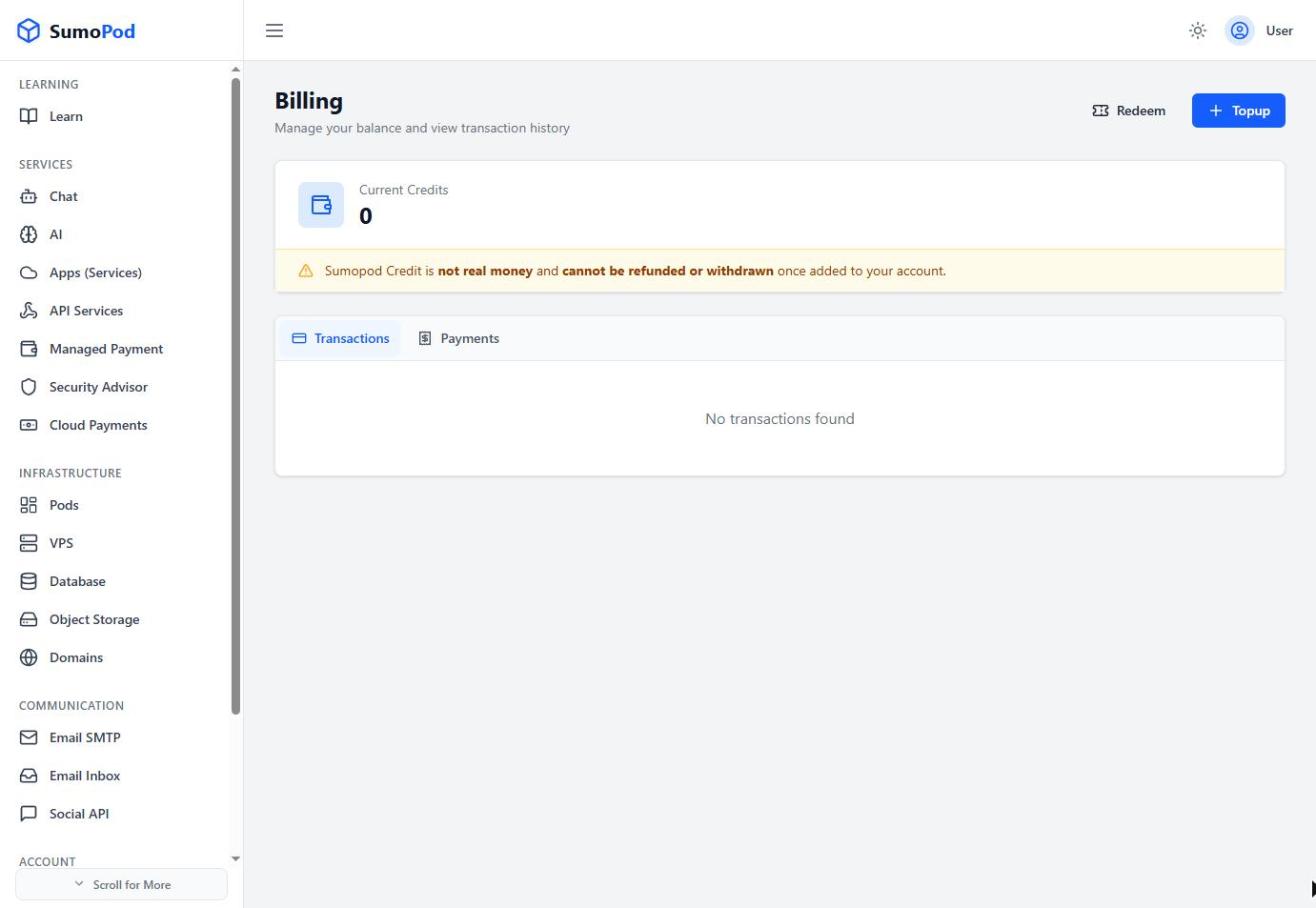
- Click Topup to add balance.
- Enter the amount you want to add, or pick one of the preset amounts (50.000, 100.000, 200.000).
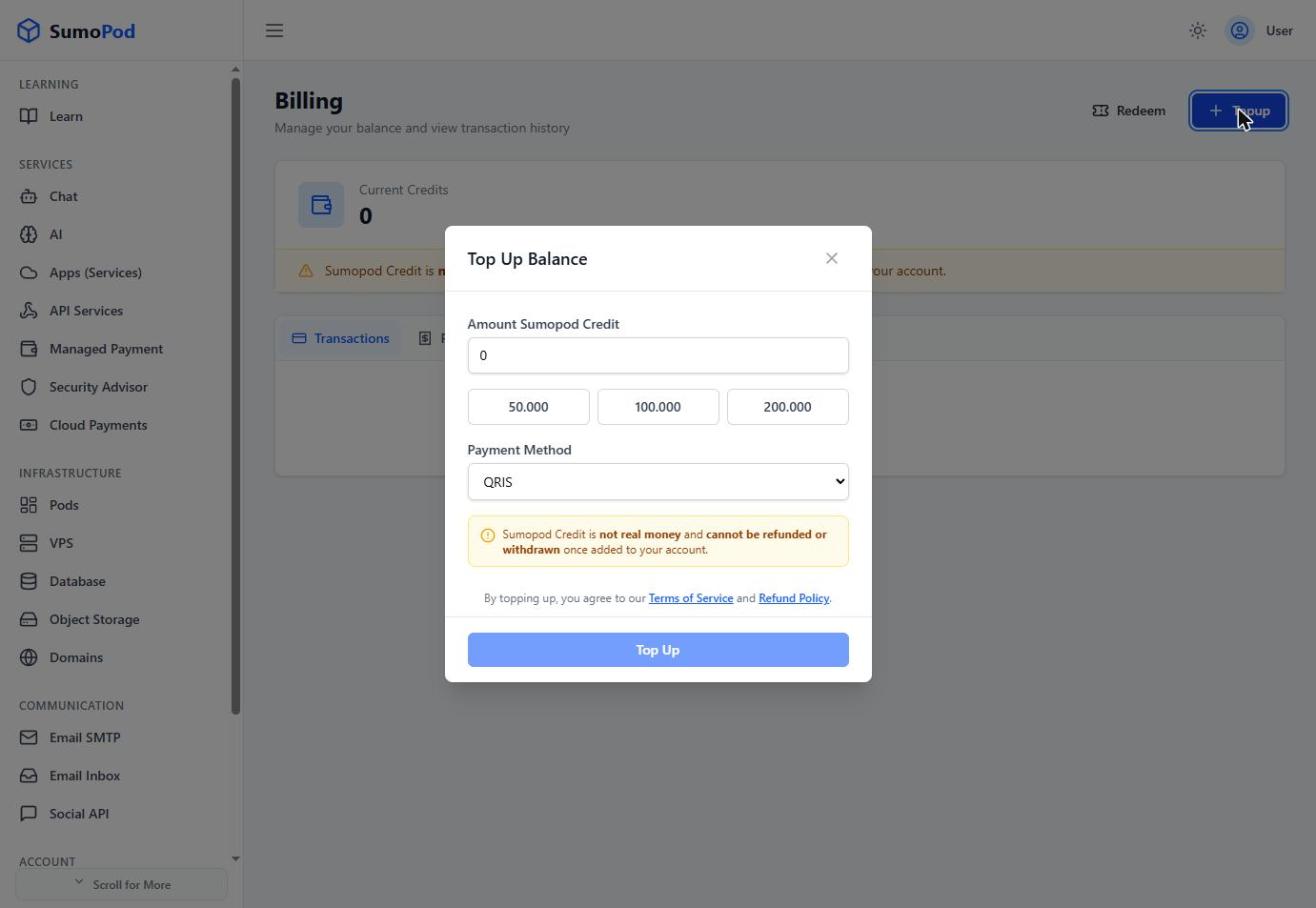
- Select an available payment method.
- Click Top Up and complete the payment.
Once the payment is successfully processed, your balance will be updated.
If your balance has not increased after payment, see Payment Troubleshooting.
Buying an n8n Service
Once you have balance, you can purchase services available on Sumopod.
How to buy an n8n app/service
- Open the Dashboard.
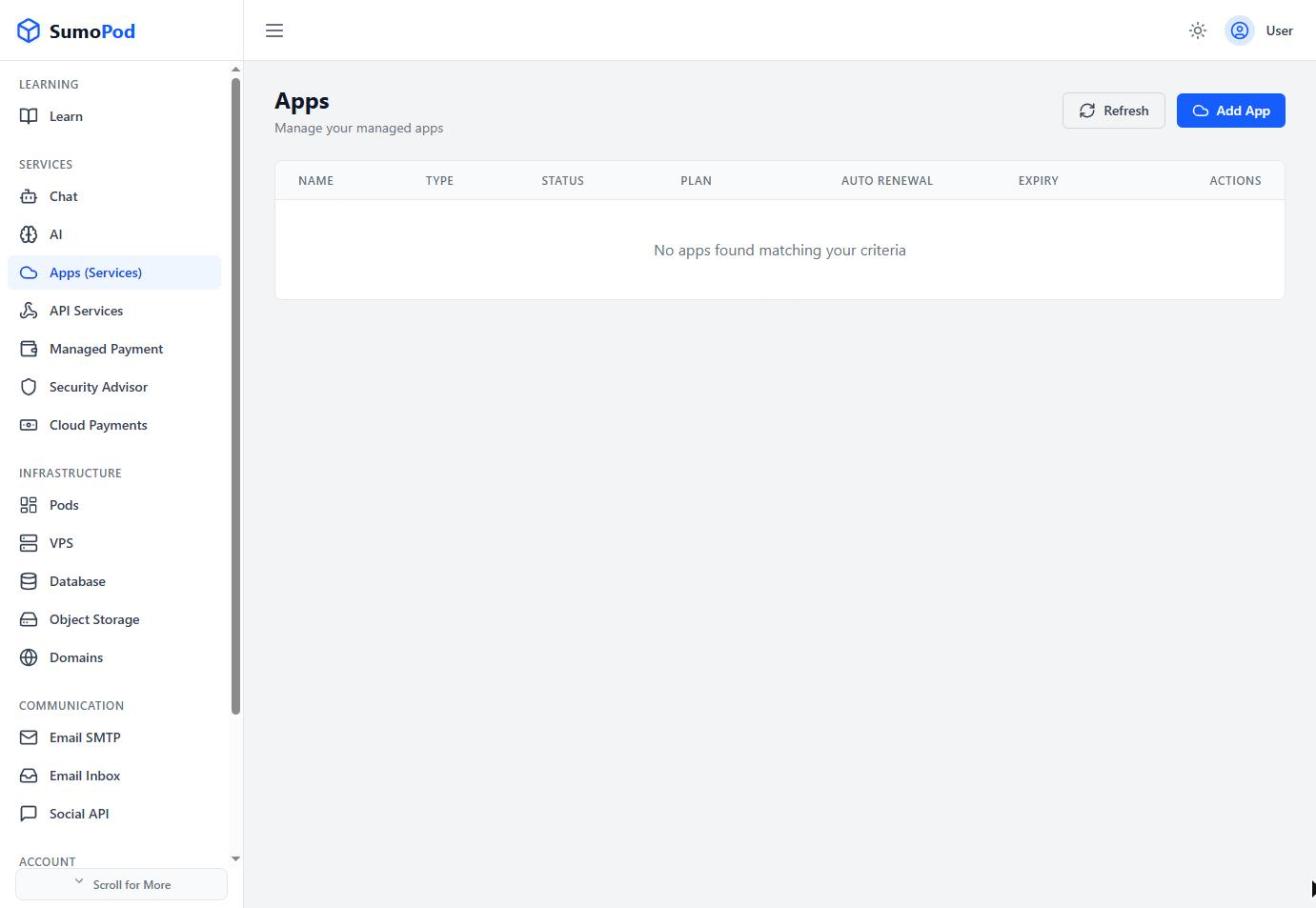
- Select the Apps (Services) menu, then click Add App.
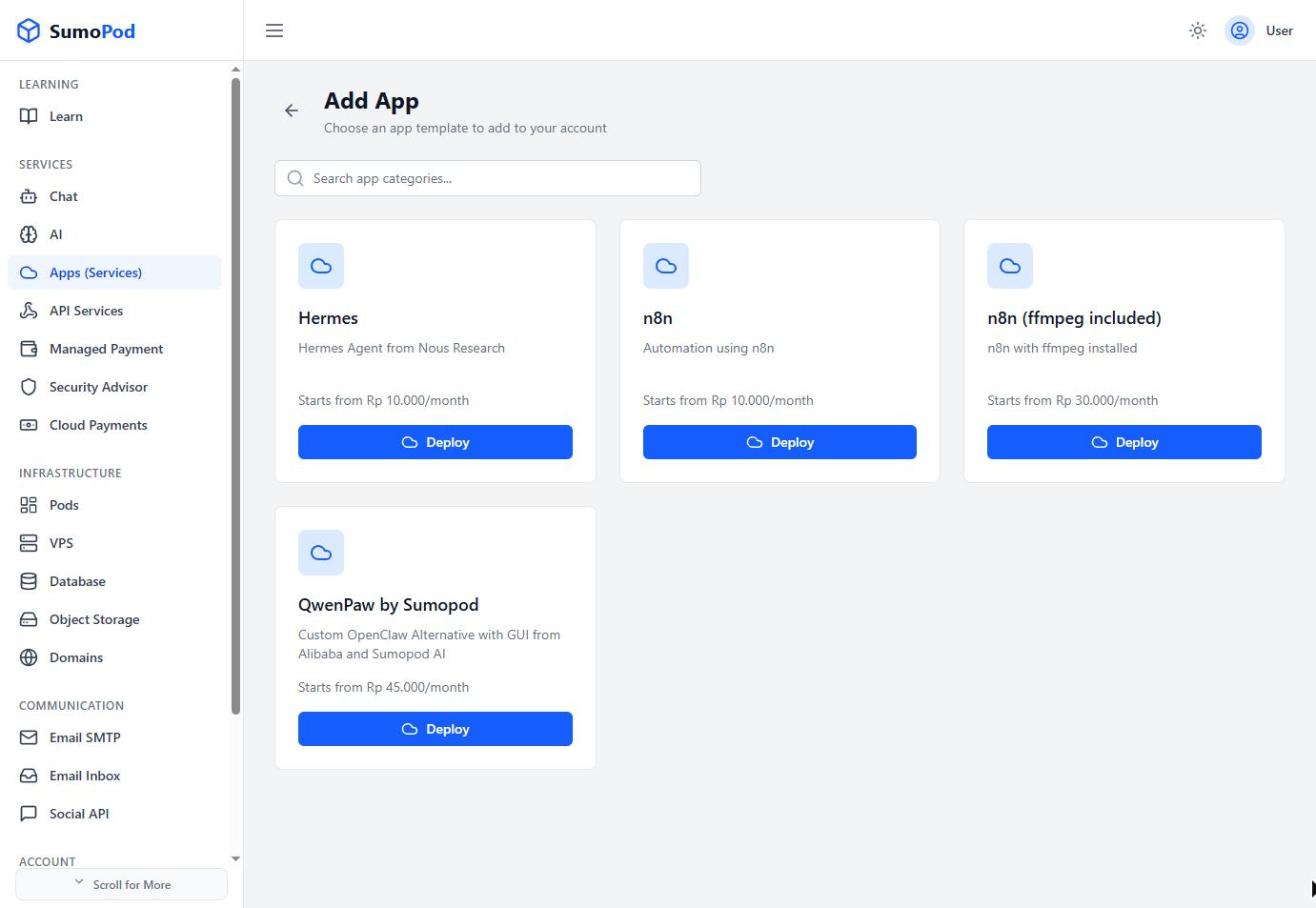
- Click Deploy on the n8n template.
- Enter an App Name, choose a Region, and pick a template (package).
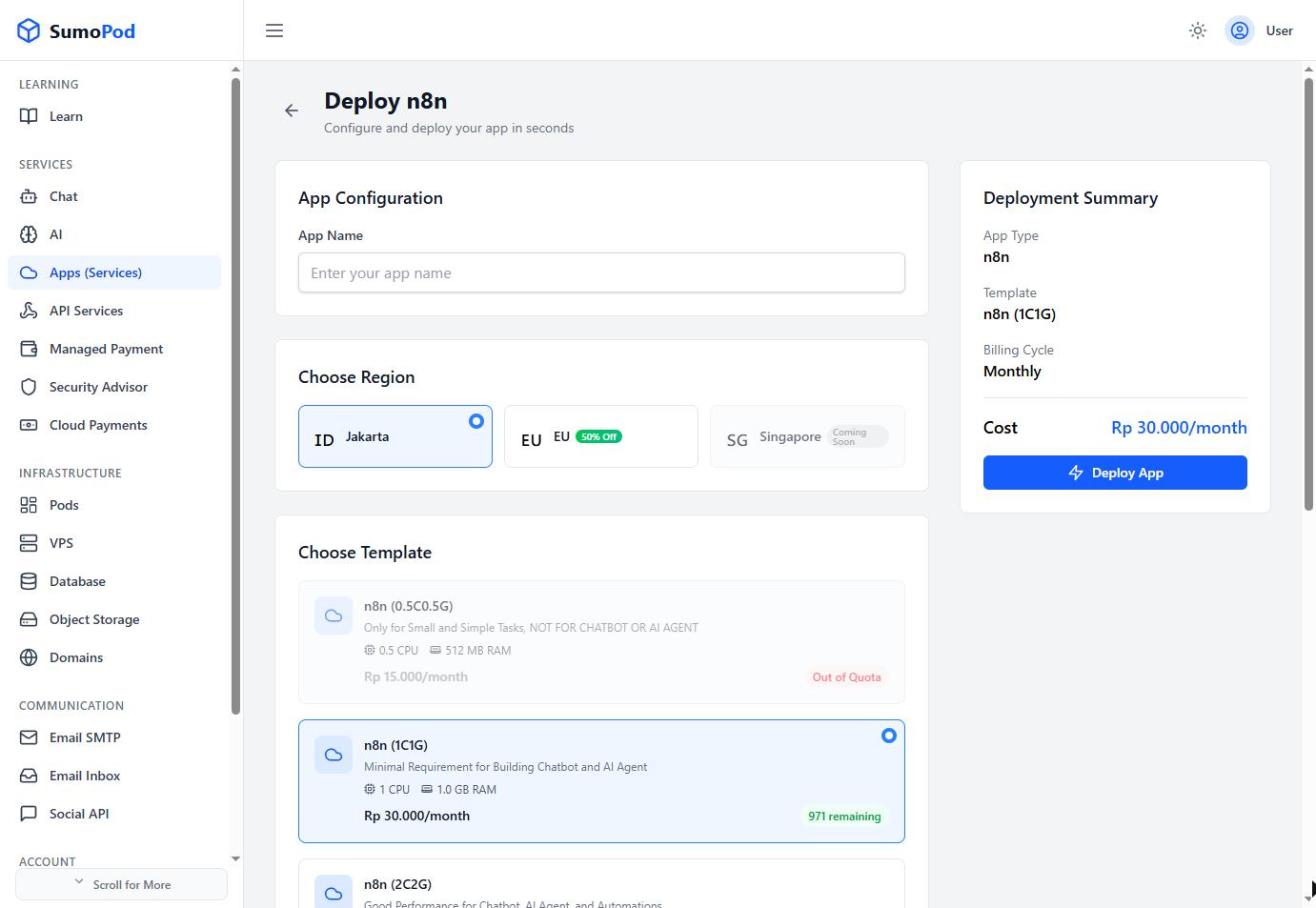
- Review the details and cost in the Deployment Summary.
- Click Deploy App. The cost is paid from your Sumopod balance.
- Wait for the n8n app/service to be fully provisioned.
Active services will appear in the Dashboard under their respective menus.
Each service has different configurations, pricing, and terms. Read the relevant service documentation before making a purchase.
Accessing Services
Once a service has been successfully created, how you access it depends on the type of service.
For example:
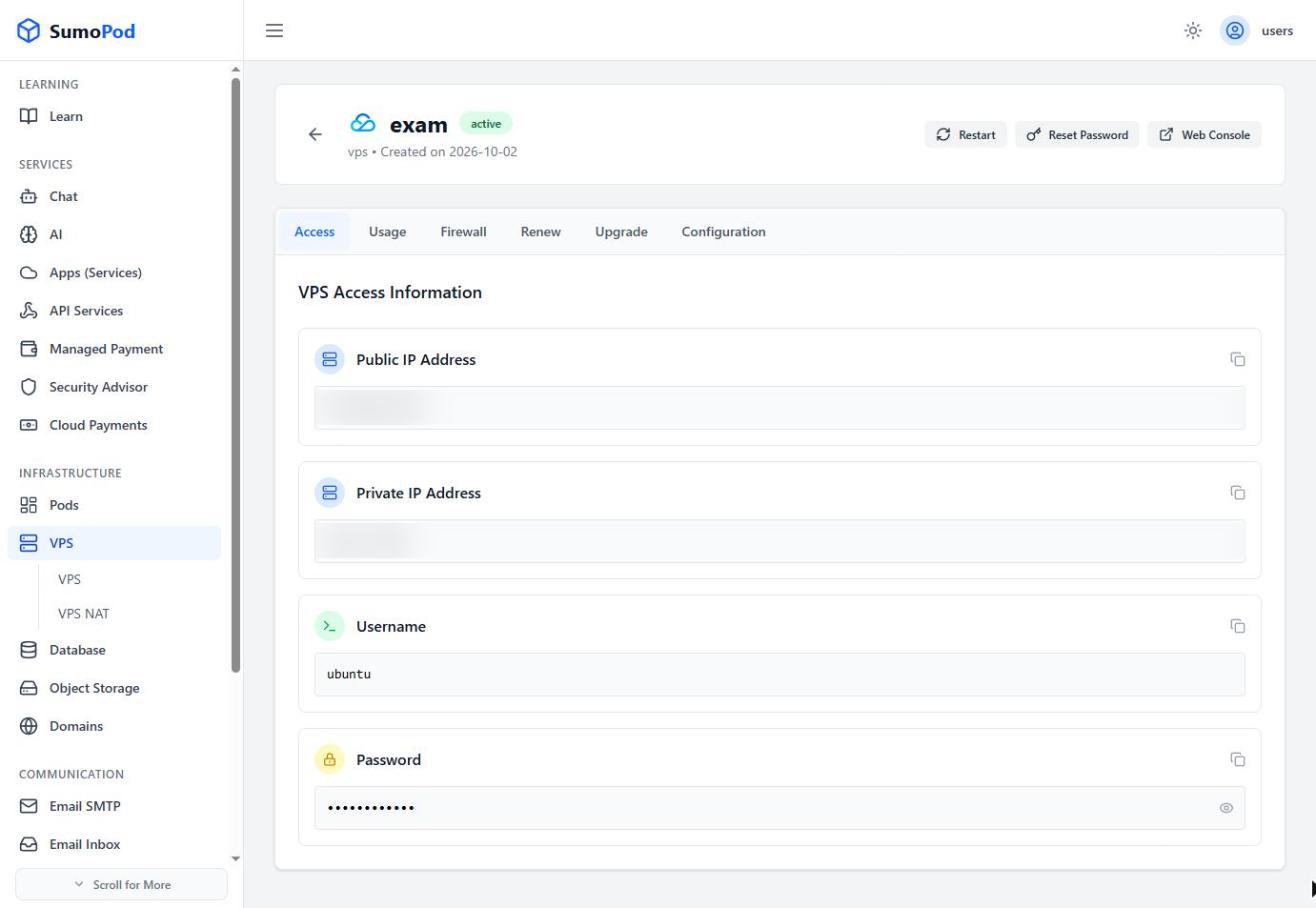
- VPS: access via SSH or web console
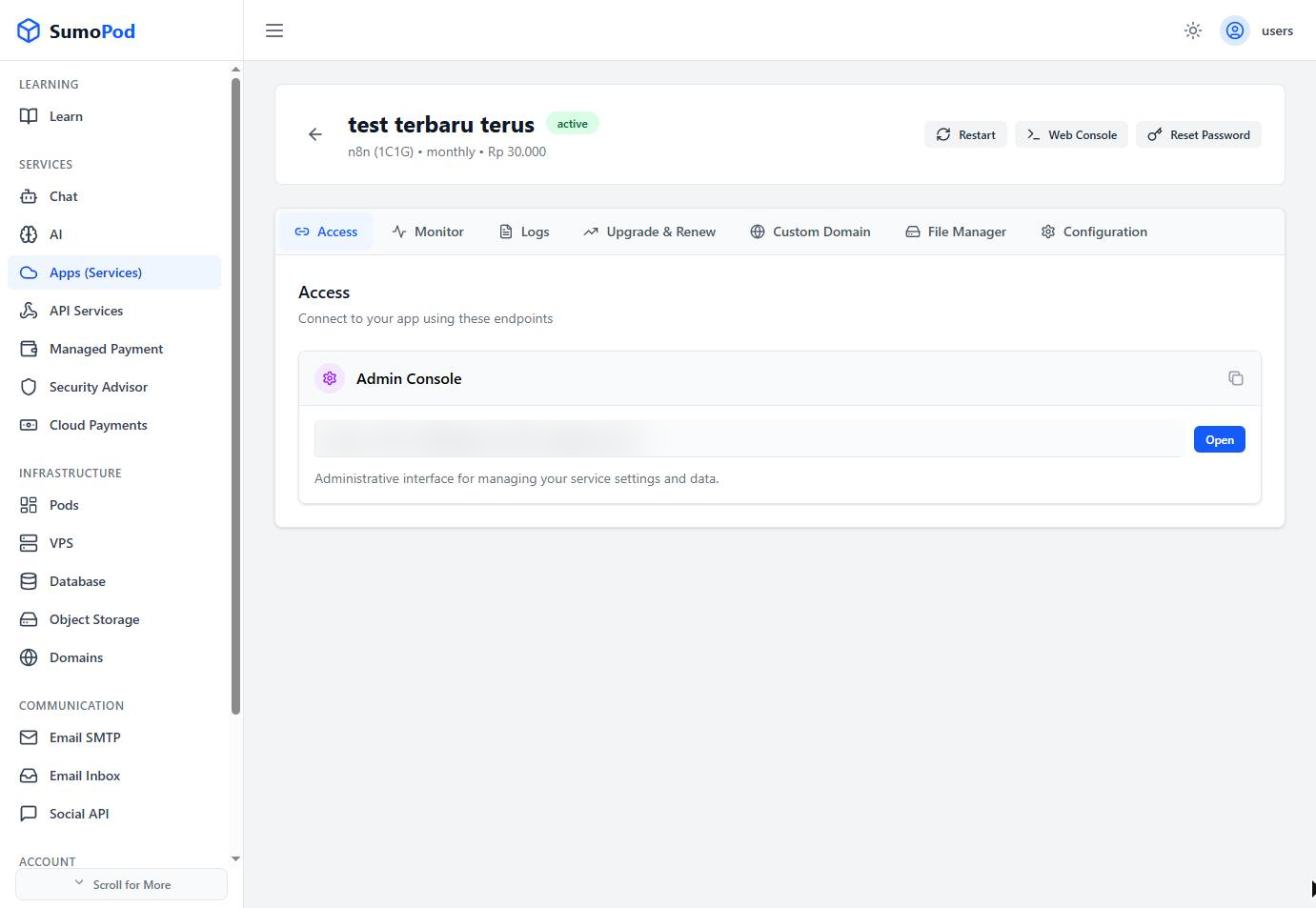
- Apps (Services): access via the provided service URL
- AI: use your API Key and API endpoint
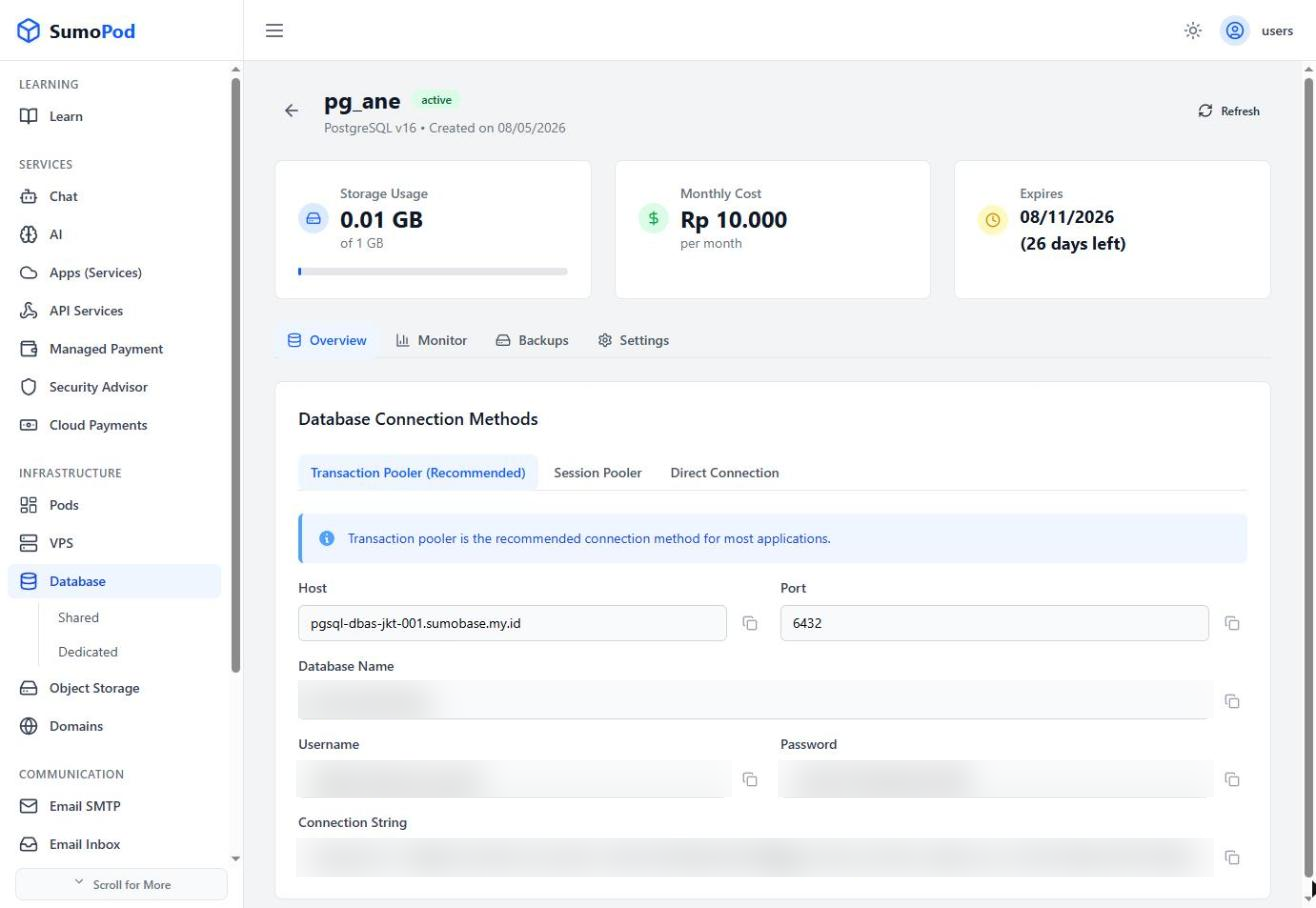
- Database: use the connection information available on the Dashboard
Refer to each service's guide for further usage instructions.
Getting Help
If you encounter any issues while using Sumopod:
- Search for the issue you are experiencing through the documentation.
- Open the Troubleshooting category for common issues.
- If a solution is not yet available, contact Sumopod Support at support@sumopod.com.
When contacting Support, include information such as the service name, error message, and steps you have already taken so the issue can be resolved more quickly.
Next Steps
After successfully creating an account and understanding the basics of using the Dashboard, choose the service you want to use: