

Cannot Access
Firewall Allow All Removed
Firewall Allow All Removed from Dashboard
If you removed the "Allow All" firewall rule from the Sumopod dashboard firewall (VPS → Firewall tab) and lost access:
- Go to Sumopod dashboard — Navigate to your VPS and open the Firewall tab.
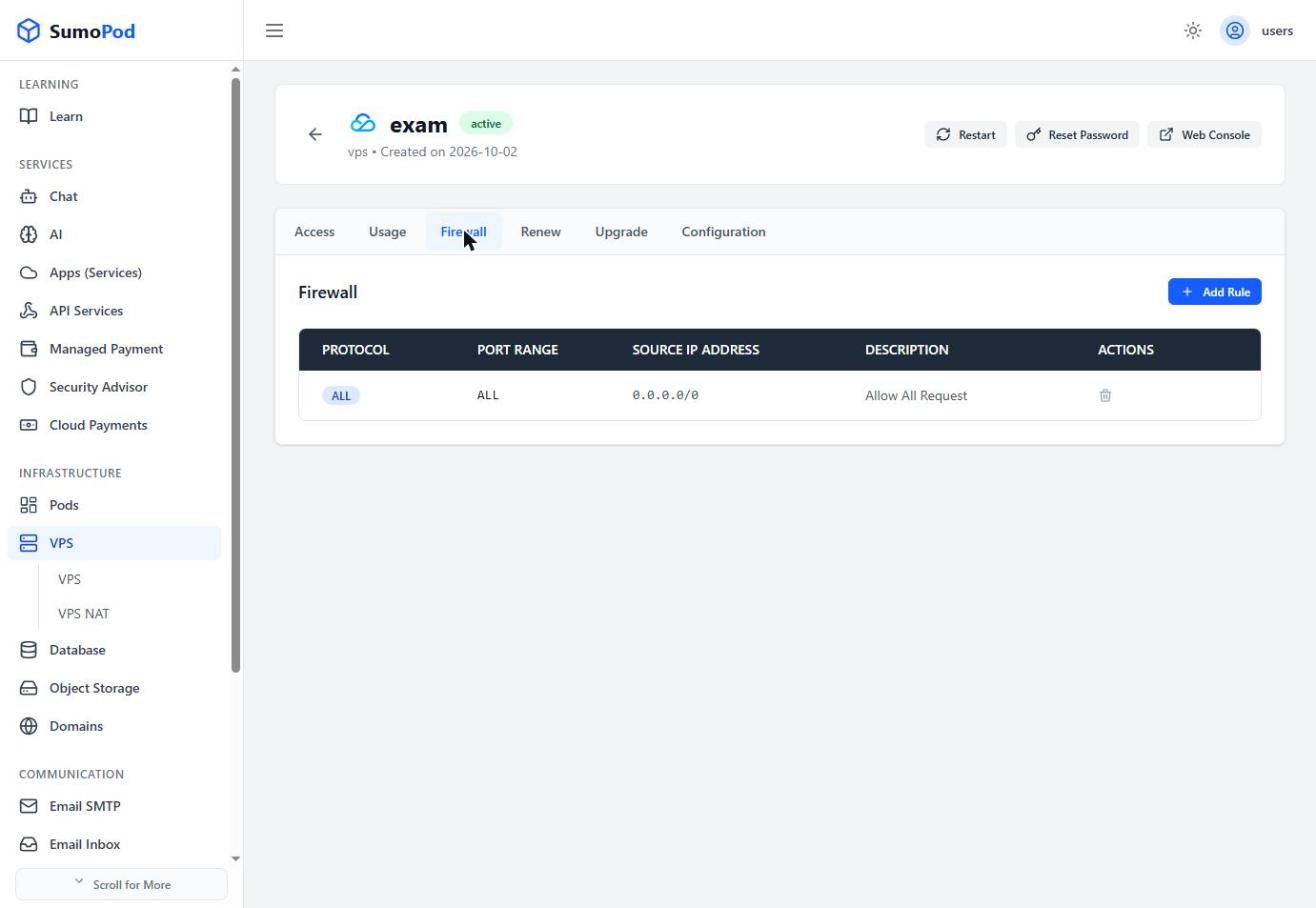
- Re-add the "Allow All" rule — Add a new rule to allow all traffic, or add a specific rule for port 22 (SSH).
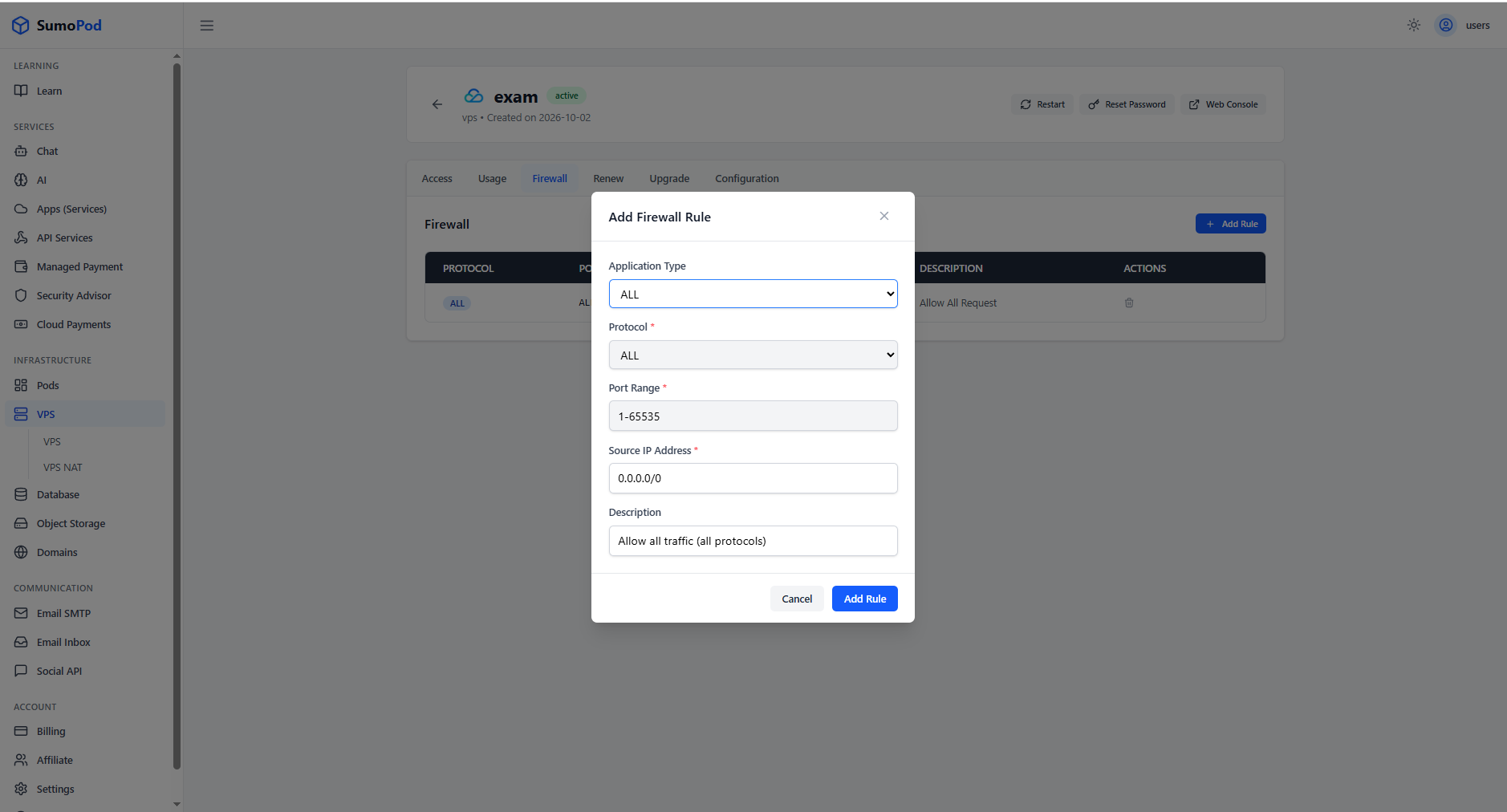
- Apply the rule — Make sure to apply/save the changes for the rule to take effect.
- Use web console — If you still cannot access via SSH, use the web console from the dashboard.
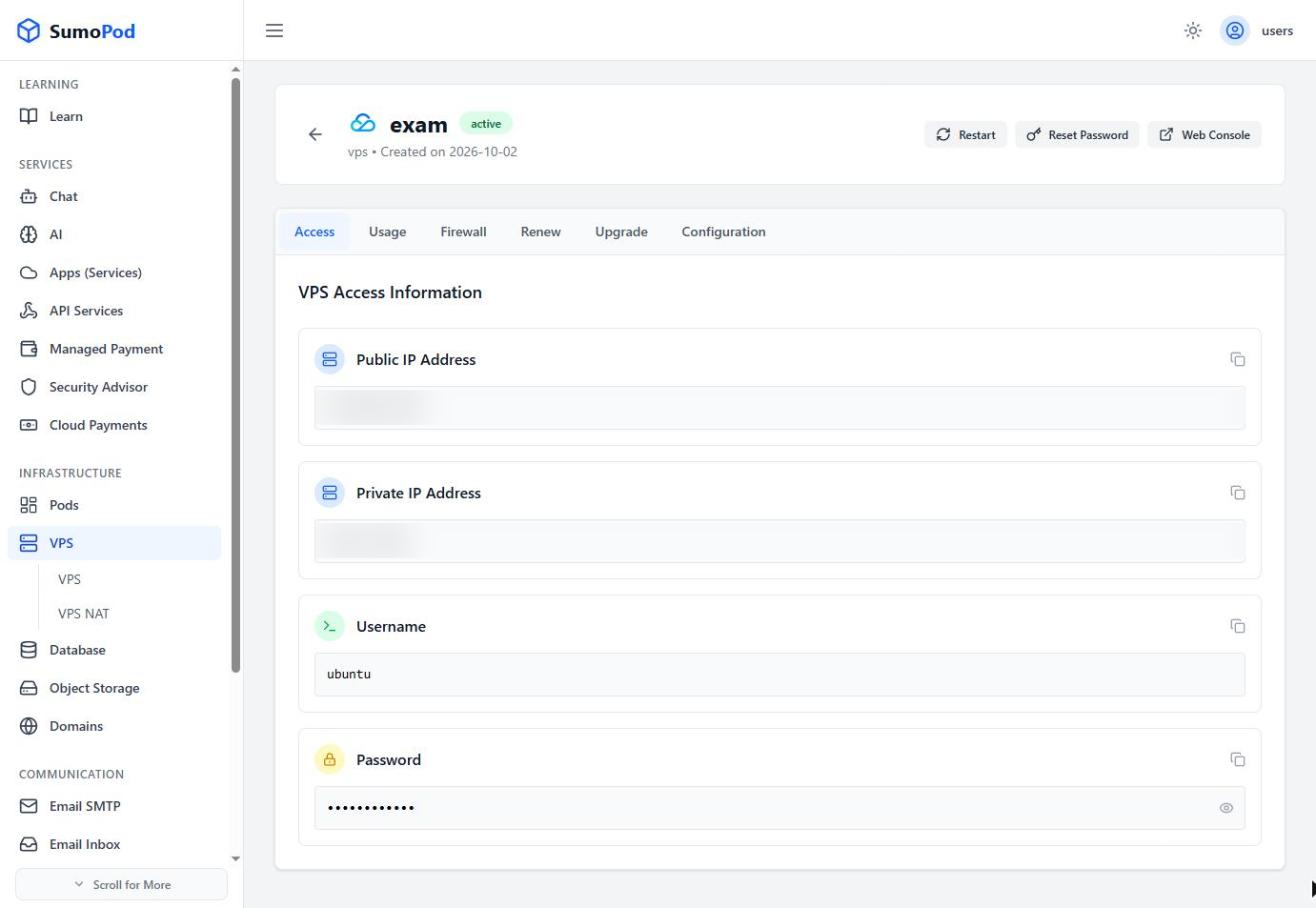
- Verify access — Try SSH again after the firewall rule has been applied.
Last modified on