

Managed Payment
Configuring Payment Settings
Customize how payments and checkout behave for your project, under Managed Payment Settings.
Steps
- Open Managed Payment, then the Settings tab.
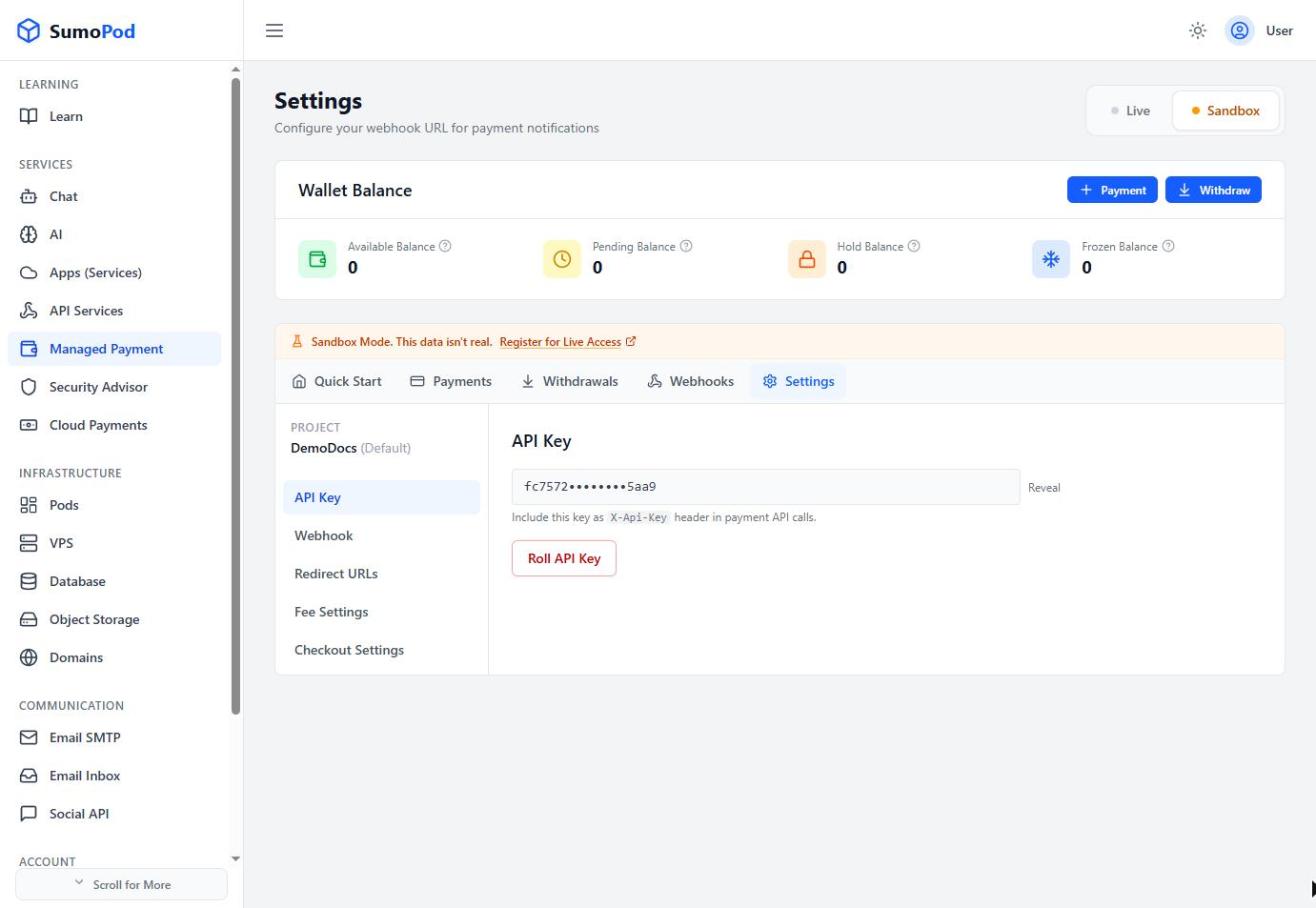
- Redirect URLs: set a default Success Return URL and Cancel Return URL (accepts
https://,http://, or a custom app link likemyapp://payment/success). These can still be overridden per payment via the API'ssuccess_return_url/cancel_return_urlfields.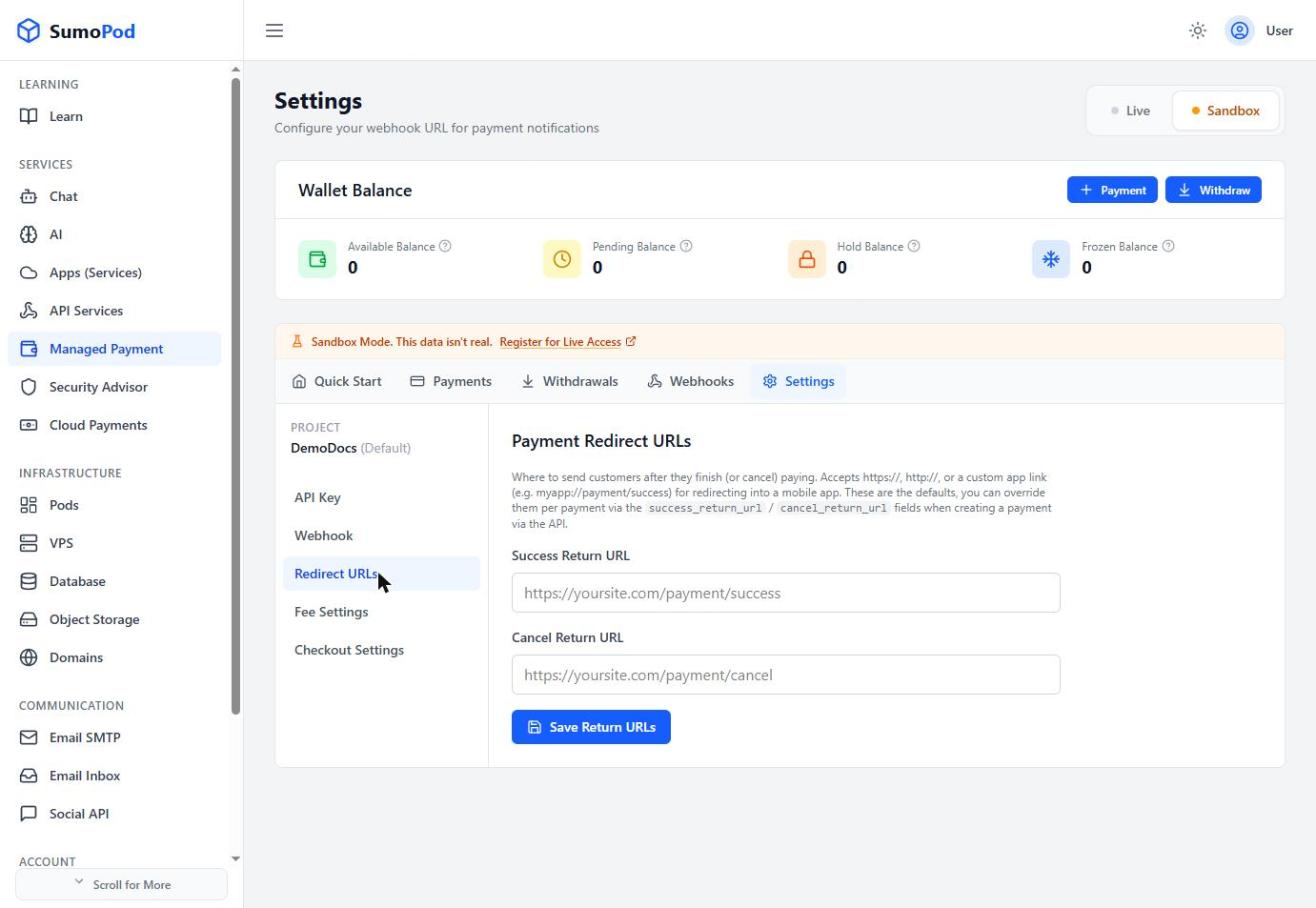
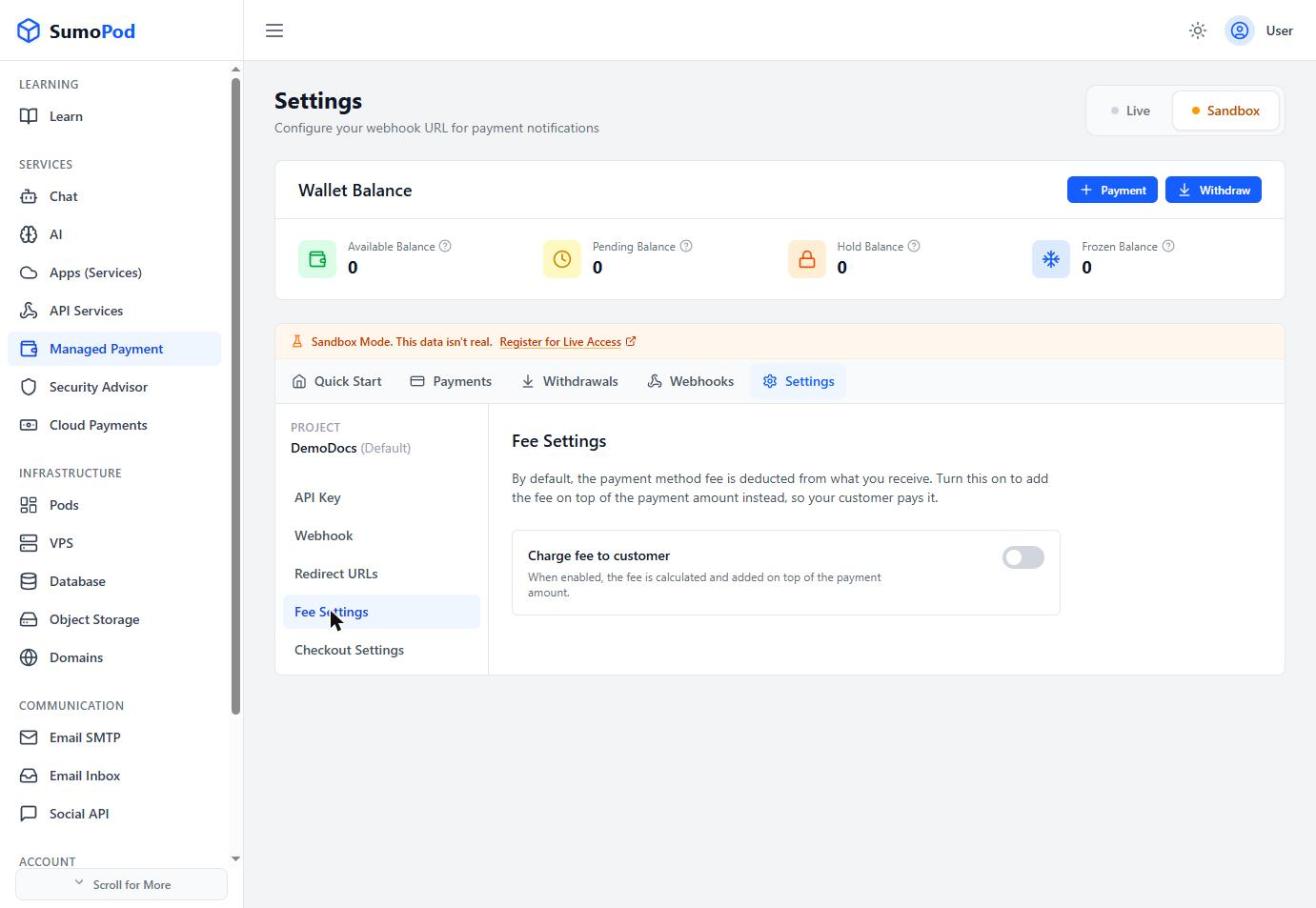
- Fee Settings: by default the payment method fee is deducted from what you receive. Turn on Charge fee to customer to add the fee on top of the payment amount instead.
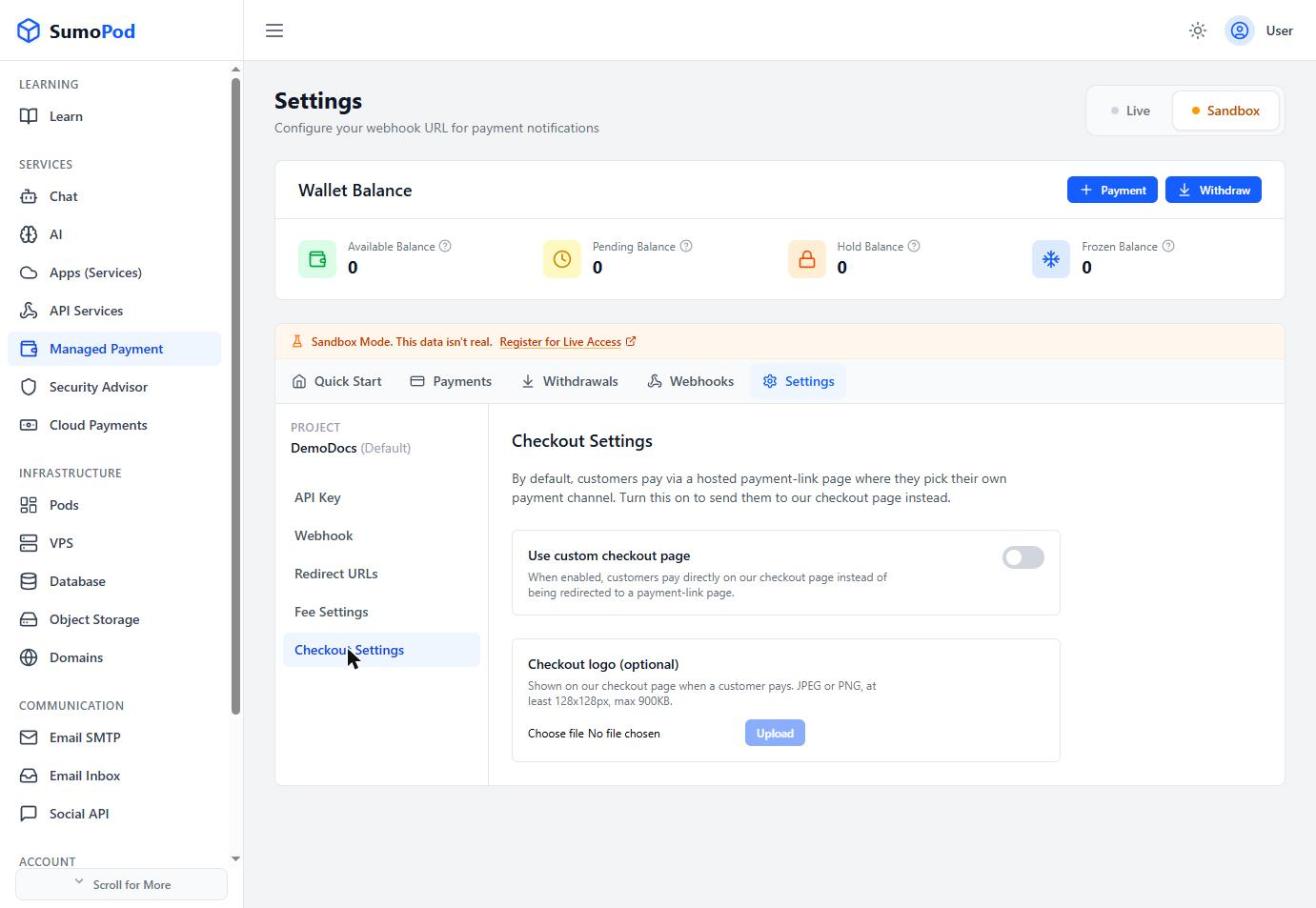
- Checkout Settings: by default customers pay via a hosted payment-link page. Turn on Use custom checkout page to send them to Sumopod's checkout page instead, and optionally upload a Checkout logo (JPEG/PNG, at least 128×128px, max 900KB).
Notes
- Enabling the custom checkout page adds extra fields to the Create Payment API response for building your own payment page.
- Direct link: Managed Payment Settings
Last modified on