

Sending Emails with a Custom Domain
Once your domain is Verified, you can send emails from any address at that domain (e.g. noreply@yourdomain.com) using your existing SMTP credentials, no extra credential or configuration is needed.
Steps
-
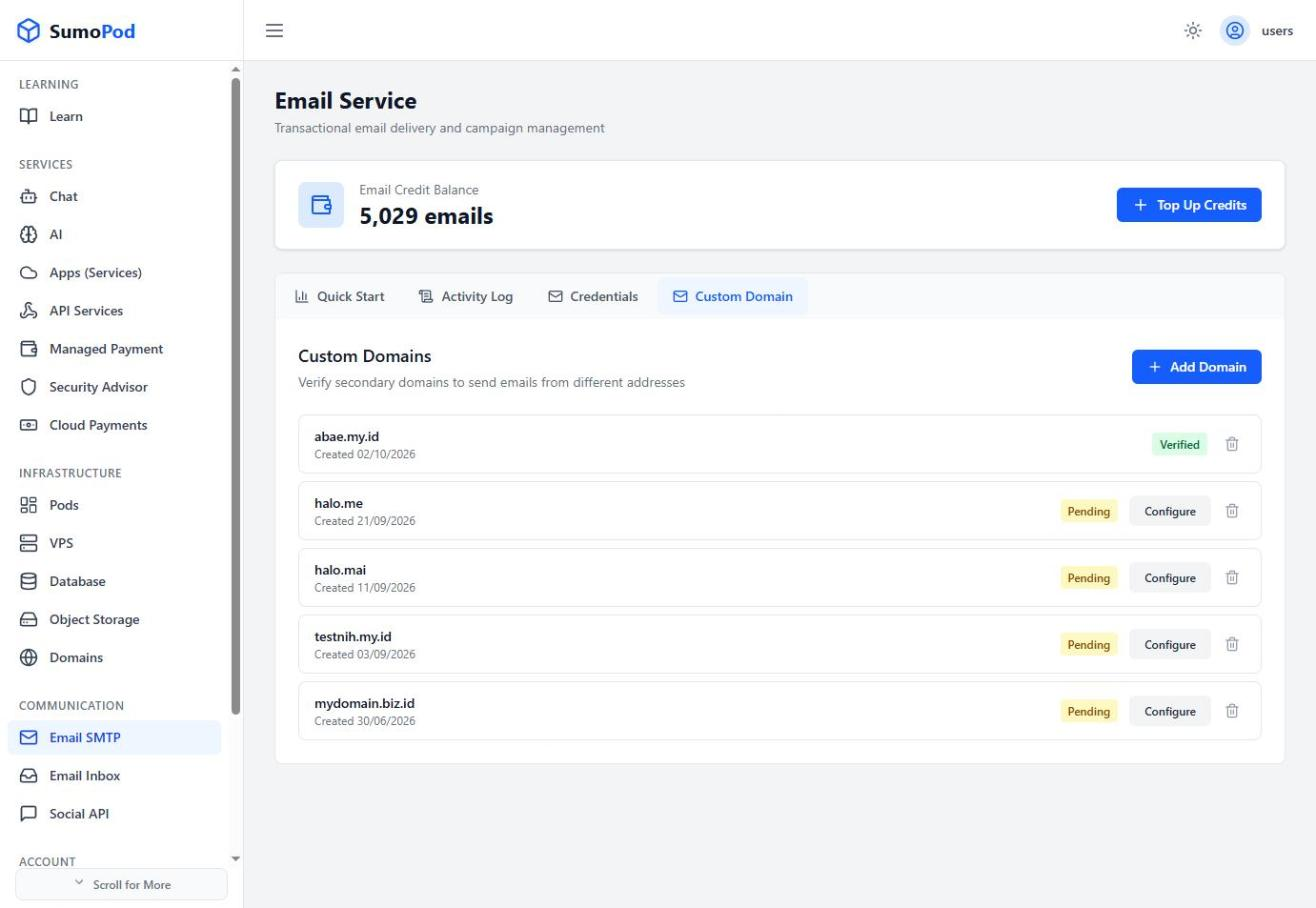
Open Email SMTP → Custom Domain tab and make sure your domain's status is Verified. If it is still Pending, complete the DNS setup first, see Custom Domain for SMTP.
-
Go to the Credentials tab and copy the credential you want to use: host
smtp.sumopod.com, port465(SSL), username, and password. Any active credential works with any verified domain.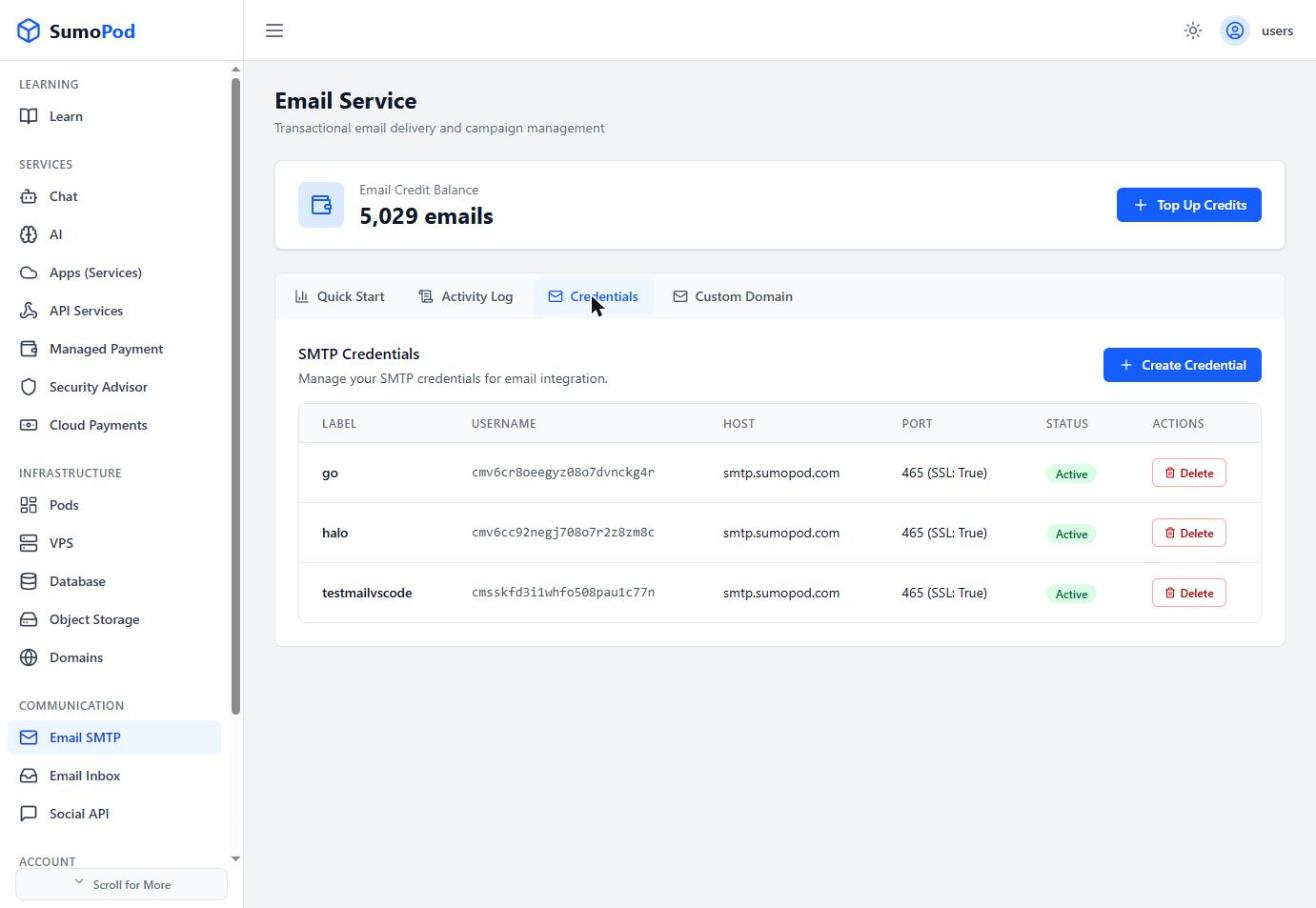
-
In your application, set the From address to an address at your verified domain. You can use any mailbox name you like, e.g.
noreply@,billing@, orhello@. Code examples are available in the Quickstart tab, just replace the From address with your own domain address. -
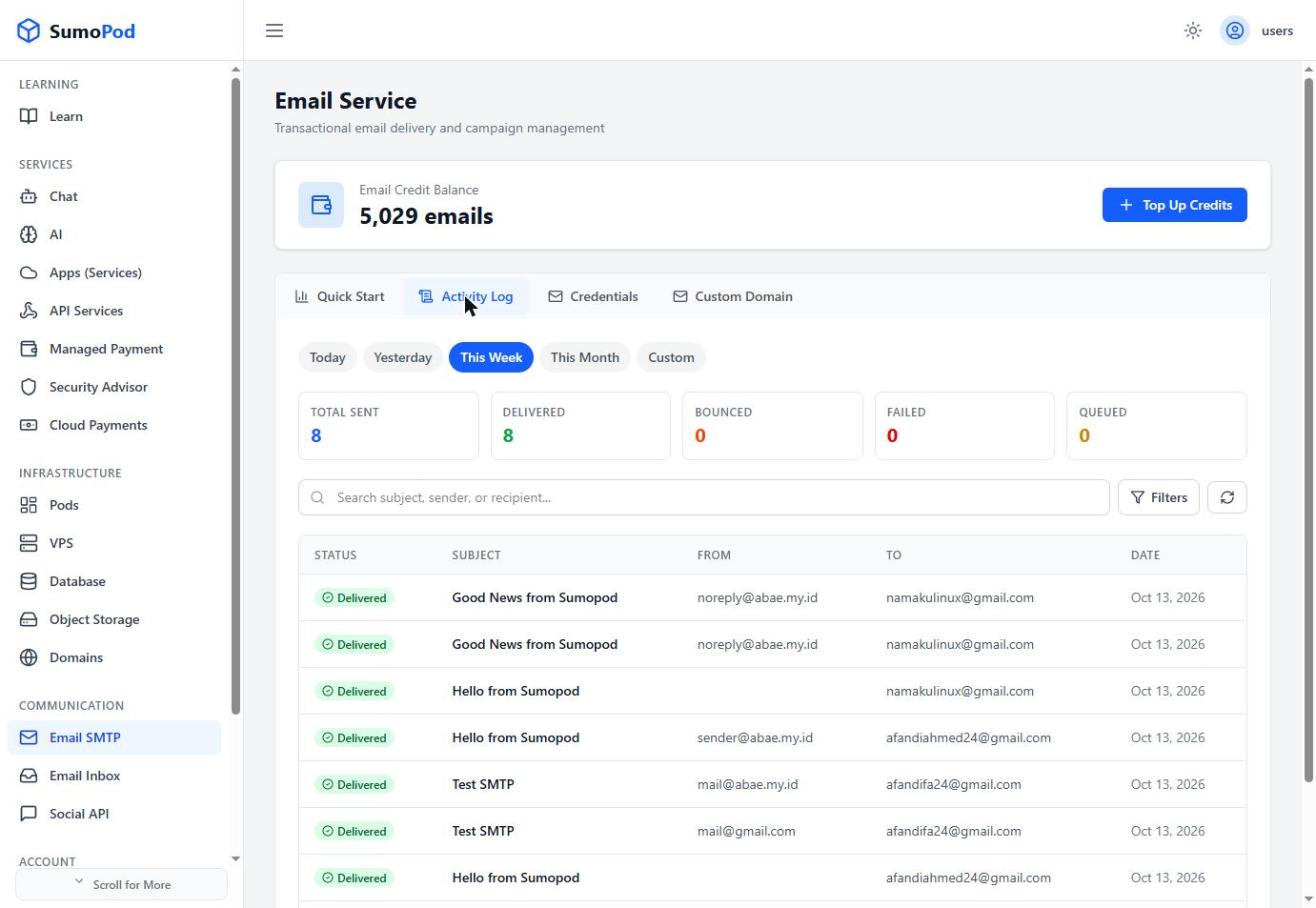
Send a test email, then check the Activity Log tab. Once delivered, the From column shows your custom domain address.
Notes
- Verifying the domain publishes the DKIM and SPF records that let receiving mail servers trust your emails. Sending from a domain that is not verified makes your emails much more likely to be rejected or marked as spam.
- How to set up the transporter/mail library itself is covered in SMTP Configuration.
- Every email sent is billed from your Email Credit Balance as usual, regardless of the sender domain.
- Direct link: Email SMTP