

VPS NAT
Viewing and Renaming a VPS NAT
The Configuration tab is where you rename your VPS NAT and review its specifications and system information.
Steps
- Open your VPS NAT from the VPS NAT list and click Manage.
- Go to the Configuration tab.
- To rename it, edit VPS Name (3–32 characters) and click Save.
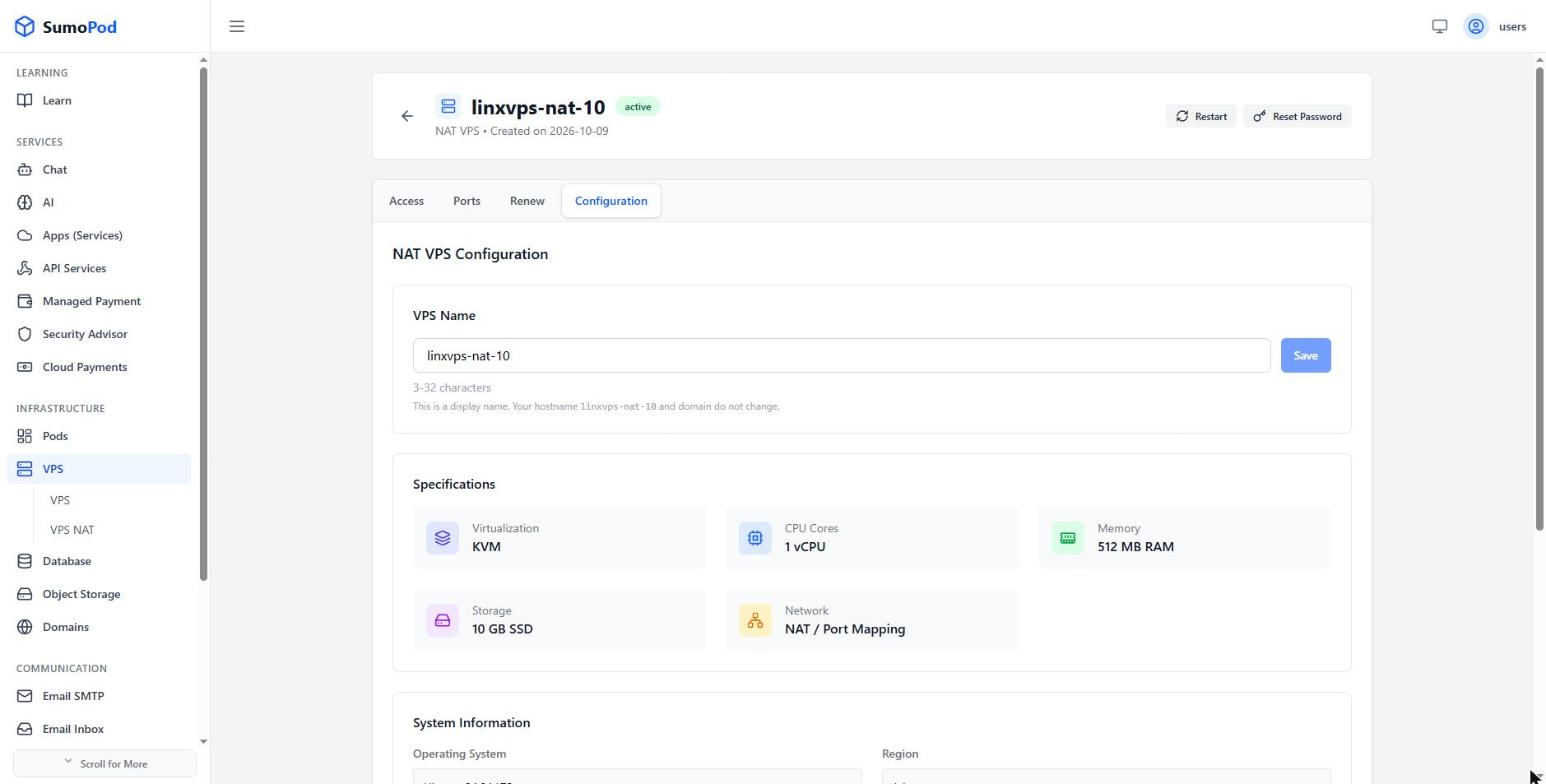
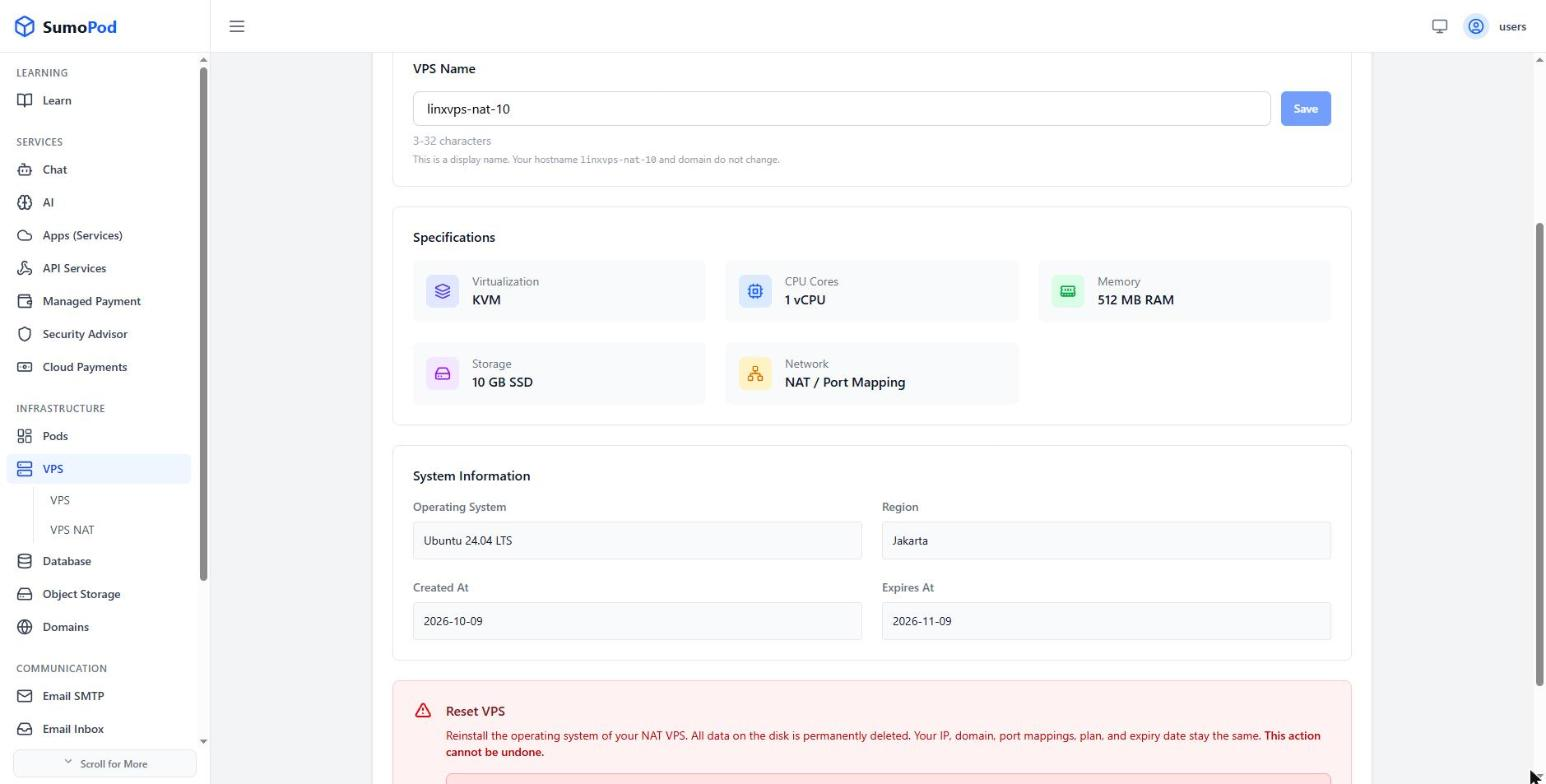
- Review Specifications (virtualization, CPU cores, memory, storage, network) and System Information (operating system, region, created and expiry dates).
Notes
- VPS Name is only a display name for the Dashboard. The hostname and NAT domain used for SSH do not change when you rename it.
- Specifications are fixed for the life of the server — a VPS NAT cannot be upgraded or downgraded. If you need a larger plan, create a new VPS NAT and move your data across.
- Network always shows NAT / Port Mapping, a reminder that inbound traffic arrives only through the ports on the Ports tab.
- The Reset VPS section at the bottom of this tab wipes the server — see Resetting a VPS NAT.
- Direct link: open your VPS NAT, then go to its Configuration tab.
Last modified on