

VPS NAT
Resetting a VPS NAT
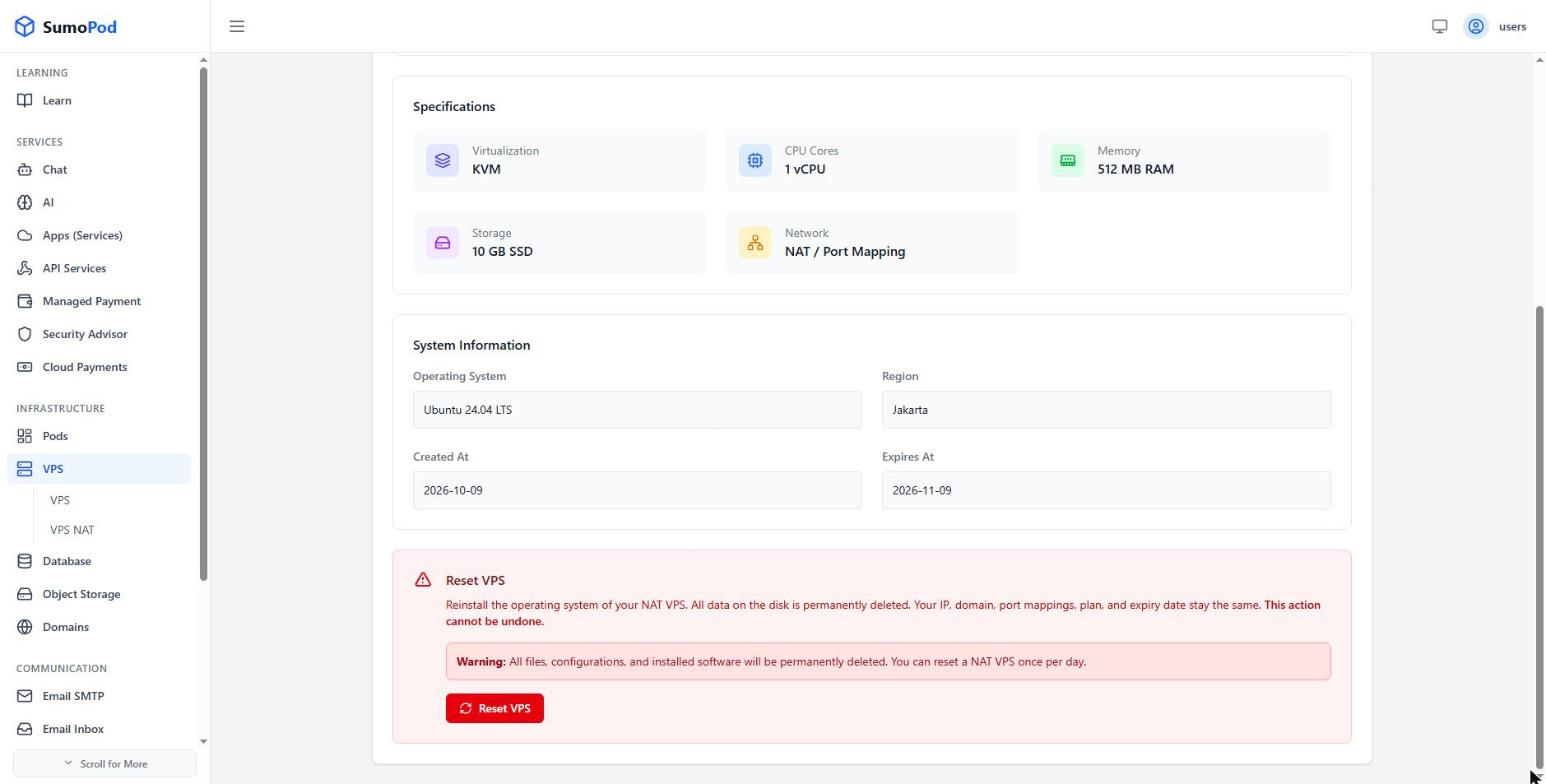
Reset reinstalls the operating system of your VPS NAT. Everything on the disk is permanently deleted.
Steps
- Make sure important data has been backed up first.
- Open your VPS NAT from the VPS NAT list and click Manage.
- Go to the Configuration tab and scroll to Reset VPS, then click Reset VPS.
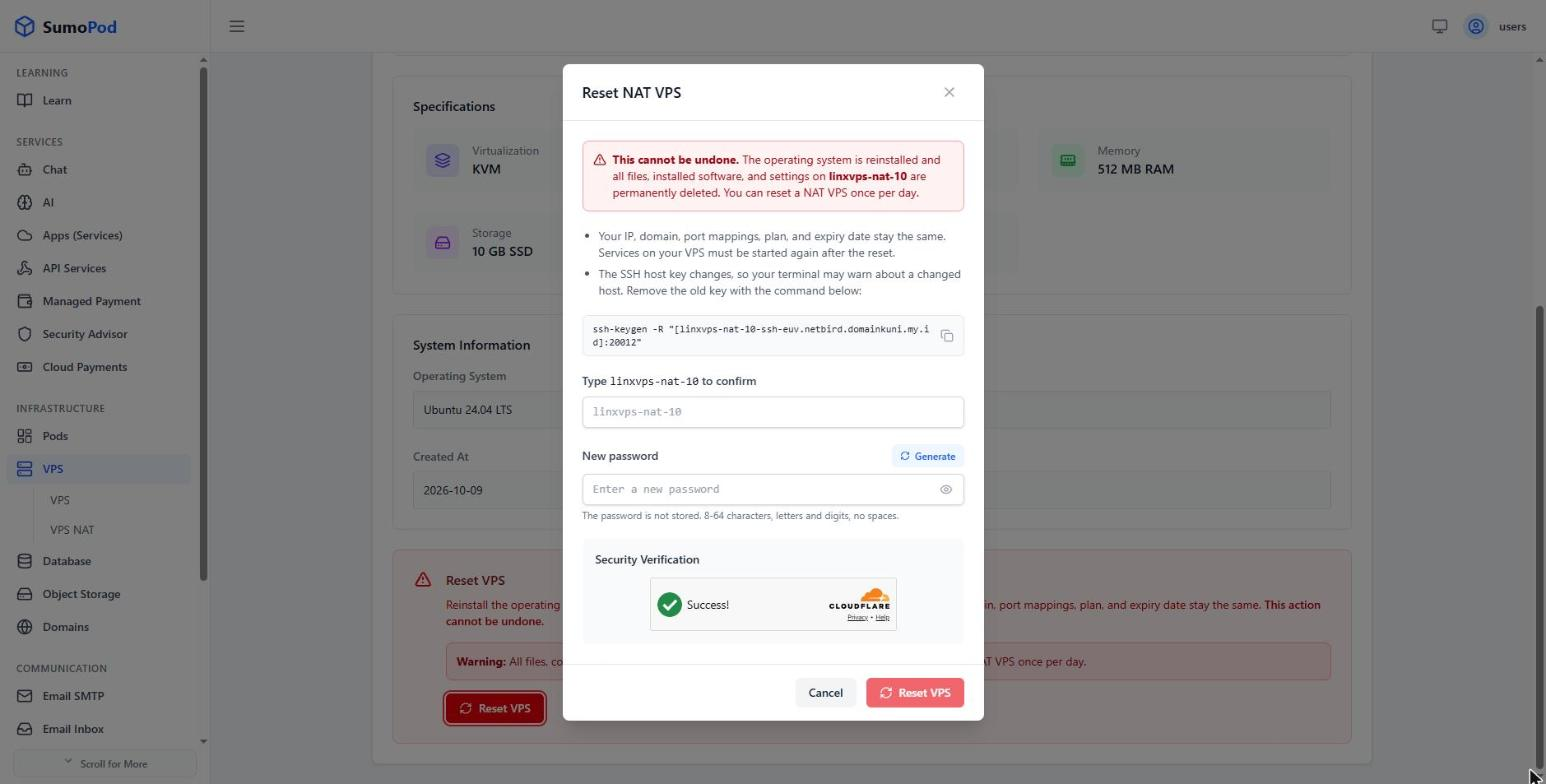
- Type the VPS NAT name in the confirmation field.
- Set a New password for the reinstalled server, or click Generate.
- Complete the Security Verification, then click Reset VPS and wait for the process to finish.
Notes
- This cannot be undone. All files, configurations, and installed software are permanently deleted.
- A VPS NAT can only be reset once per day.
- The VPS NAT is reinstalled with the same operating system. There is no Change OS option for VPS NAT.
- Your NAT hostname, domain, port mappings, plan, and expiry date stay the same — only the disk is wiped. Services must be started again after the reset.
- The new password must be 8–64 characters, letters and digits, with no spaces. It is not stored, so save it before you submit.
- The SSH host key changes, so your terminal will warn about a changed host on the next connection. Remove the old key with the
ssh-keygen -Rcommand shown in the dialog, then connect again.
Last modified on