

VPS NAT
Accessing VPS NAT via SSH
SSH is the only way to reach a VPS NAT. Because it has no public IP of its own, you connect to a NAT hostname on the port assigned to your server.
Steps
- Open your VPS NAT from the VPS NAT list and click Manage.
- Go to the Access tab and copy the ready-made SSH command, along with the Username.
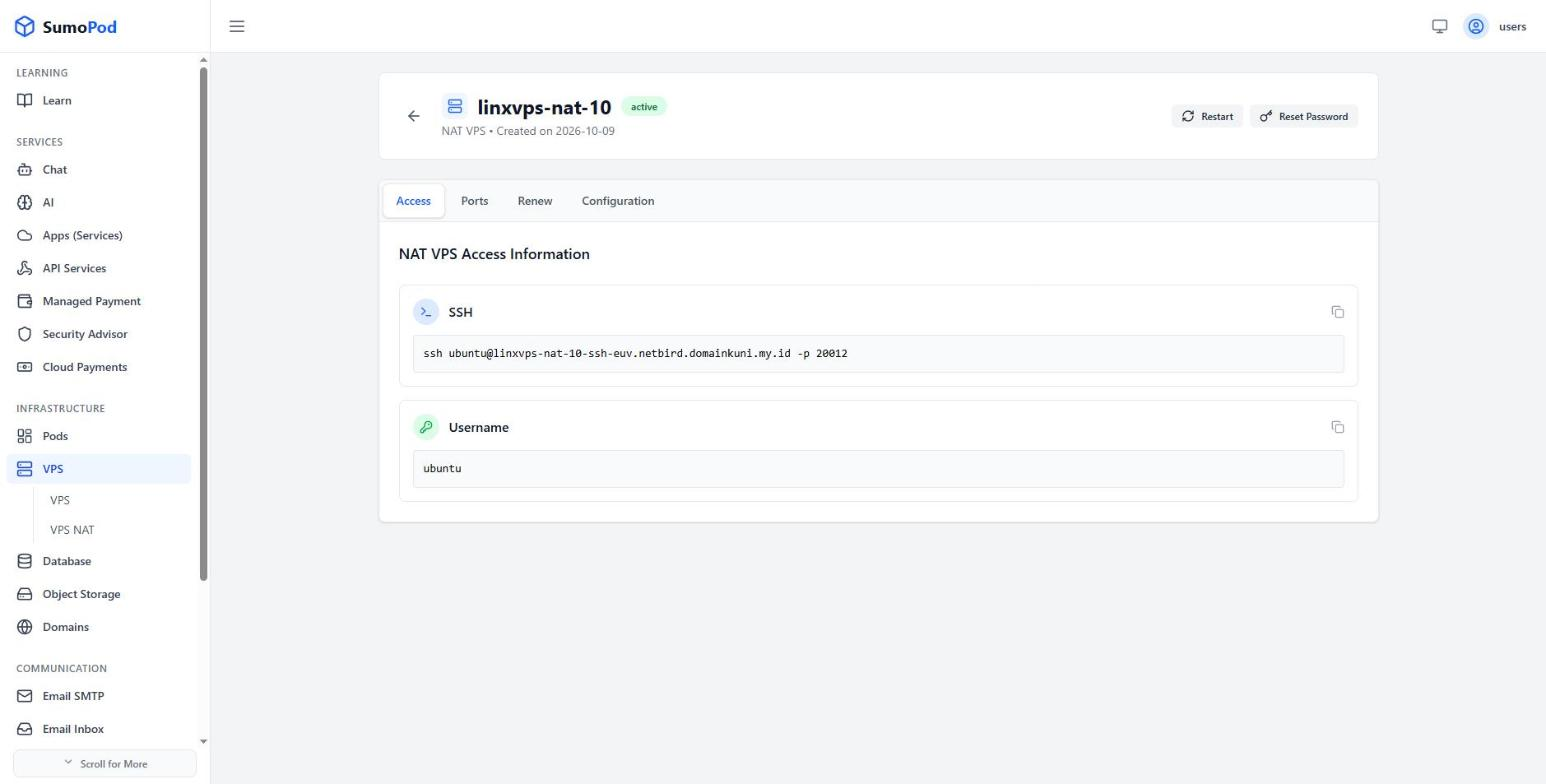
- Open a terminal or command prompt on your computer.
- Run the command, which has the form
ssh ubuntu@<nat-hostname> -p <assigned-port>. - Enter the root/SSH password you set when creating the VPS NAT.
Notes
- The default username is
ubuntu. - The
-pflag is required. Leaving it out makes SSH try port 22 on the shared NAT host, which will not reach your server. - The password is the one you set at creation — it is not stored by Sumopod and is not shown anywhere in the Dashboard. If you've lost it, see Resetting Your VPS NAT Password.
- After a reset the SSH host key changes and your terminal will warn about it. Remove the old key with the
ssh-keygen -Rcommand shown in the reset dialog. - Direct link: open your VPS NAT, then go to its Access tab.
Last modified on