

VPS NAT
Managing VPS NAT Ports
A VPS NAT is reached through ports assigned to you on the shared NAT host. The Ports tab shows which ports you have and where they point inside your server.
Steps
- Open your VPS NAT from the VPS NAT list and click Manage.
- Go to the Ports tab to see every assigned port, its destination port inside the VPS, its protocol, and its status.
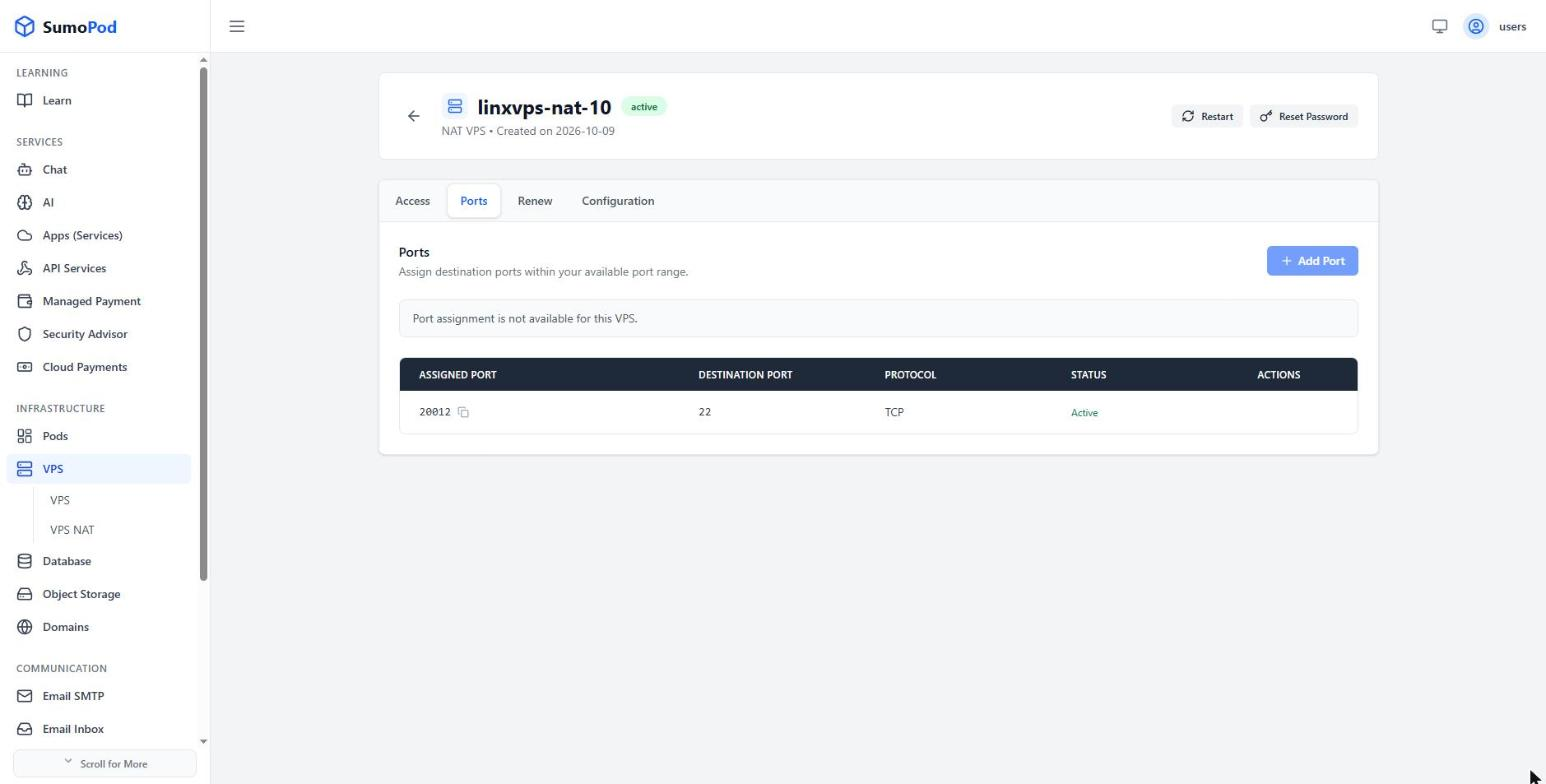
- Reach a service from outside using the NAT hostname together with the assigned port, not the destination port.
- If you need more ports than the ones listed, request them from support@sumopod.com with your VPS NAT name and the destination port and protocol you want.
Notes
- Every VPS NAT comes with one mapping for SSH: an assigned port forwarded to port
22. Don't remove it, or you'll lose SSH access. - Port assignment is not self-service. The Add Port button is disabled and the tab shows Port assignment is not available for this VPS unless your plan has an extra port range — additional ports go through support.
- The assigned port is chosen from the NAT host's range and cannot be picked freely; only the destination port inside the VPS is yours to choose.
- A port mapping only forwards traffic. The service must actually be listening inside the VPS, and the OS firewall must allow it — see OS-level firewall.
- Port mappings survive a reset; the services behind them do not, and must be started again.
- Direct link: open your VPS NAT, then go to its Ports tab.
Last modified on